After you have gone through the full hiring process, and you have chosen an ideal candidate, you will want to correctly enter them into the system.
When an employee is ready to be officially hired, you will need to go through the onboarding process.
To add an employee, on the Onboarding tab, choose Onboard New Employee from the left menu.
Here you will see two options for adding an employee, and to be able to include all of the documents that you need to successfully onboard this person.
You can either select an existing Onboarding Package or you can manually choose which documents to include. We will demonstrate the manual method. Choose which documents you need and click Continue.
On the next screen, simply fill out the personal information regarding the new employee. Note that all fields on this screen are required, including:
- First Name
- Last Name
- Email Address
- Employment Type
- Employee Title
- Start Date
- Pay Type
- Pay Frequency
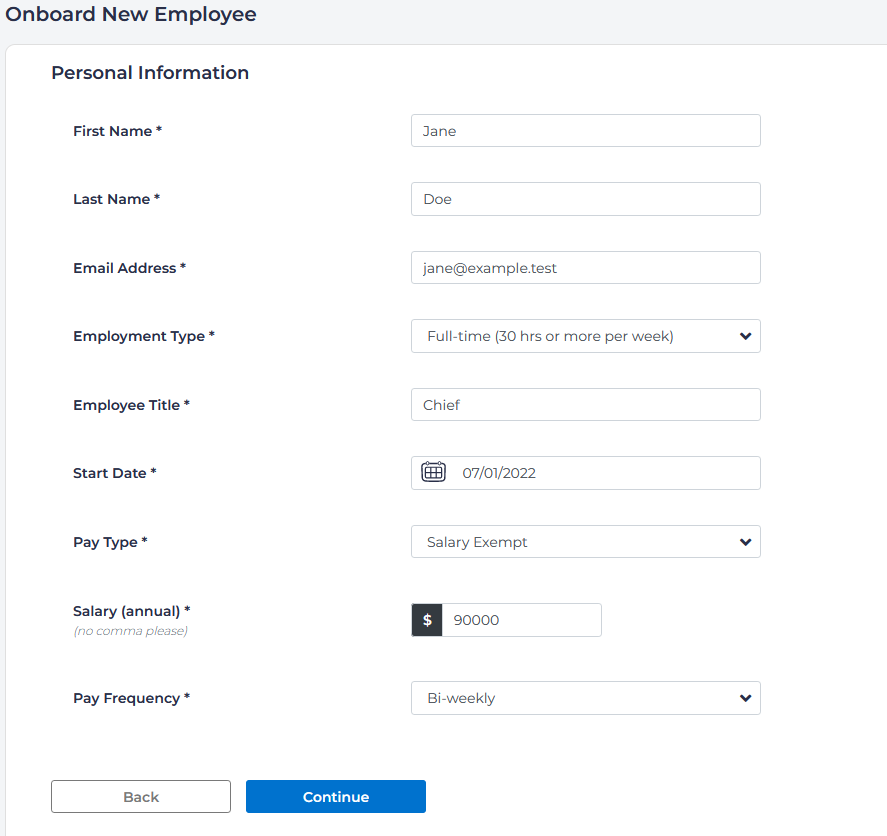
On the next screen, choose the EEO Job category, Department Name, number, division, work location, and project (if necessary). These fields are not required. After you are complete, click Continue.
On the next screen you will be able to send an offer letter to your new hire. Choose a letter template, and you will be presented with a preview:
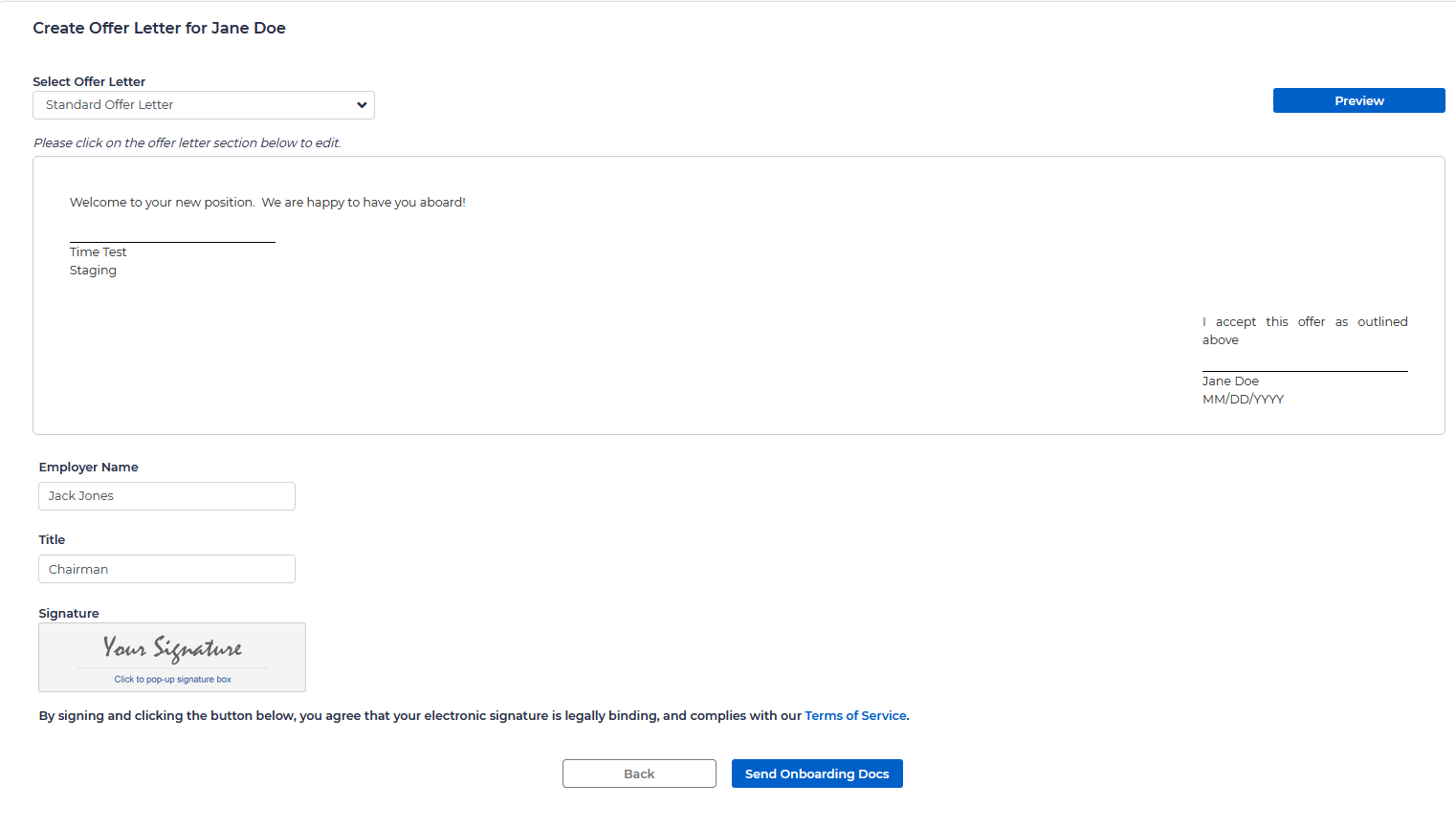
You may sign the letter directly on the page by clicking on “Your Signature”. Once you are complete, click on Send Onboarding Docs on the bottom of the page, and the letter and all of the documents will be automatically sent via email to your new hire. You will see a confirmation page that looks like this:
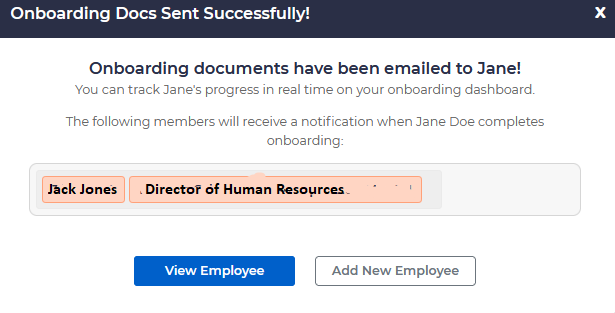
You can then View Employee or add a new one.