Sometimes when there is a change to an employee’s profile, they become newly eligible for benefit plans. If this occurs, upon saving the profile, a popup modal will appear with information about these new plans.
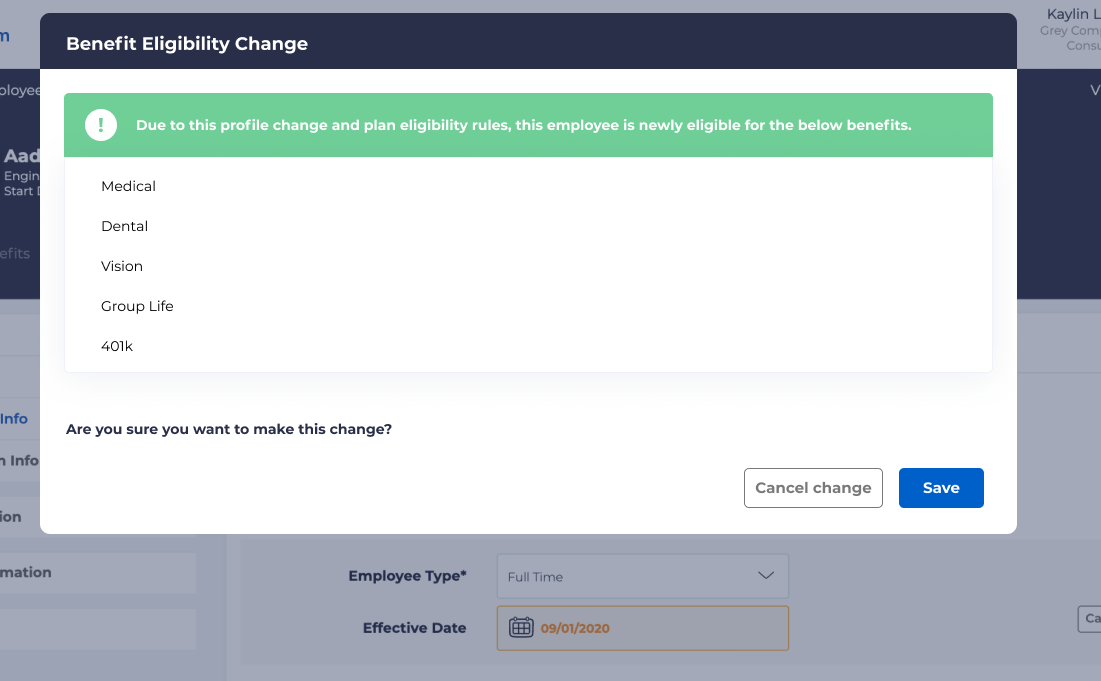
On the left side of the modal window, it will display a list of plans for which an employee is newly eligible. Two options will appear on the bottom: “Cancel change” or “Save.” If “Cancel change” is selected, then the changes to the employee’s profile will not be changed. If “Save” is selected, a new popup modal will appear with the following information:
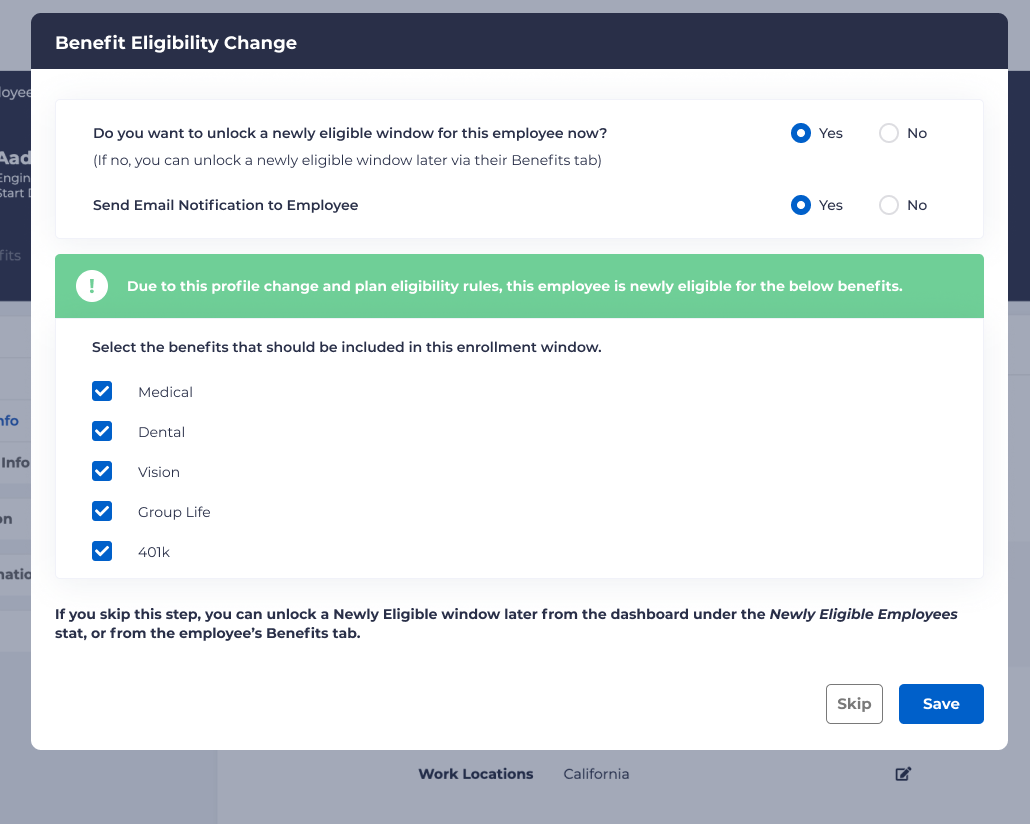
At the top of the window, two questions will appear:
- “Do you wish to unlock a newly eligible window for this employee now?”
- If answered “Yes,” this will unlock a new window for enrollments for this person.
- If answered “No,” no window is unlocked.
- “Send email notification to employee.”
- If answered “Yes,” this will send an email to the employee notifying them of the above selection.
- If answered “No,” then no email notification will be sent.
Below this, the same plans as mentioned in the previous modal window will be listed, but with options for selecting which plans should be unlocked. The plans which are selected will then become available in the newly eligible window.
Note: if there are any product types which have restrictions or contingent plan rules, the option of selecting or deselecting them will be disabled. Hovering the mouse over the product will provide a description as to why the option is disabled.
On the bottom of the modal, two options are provided. The first option is to “Skip,” which will take no action. If this is chosen It will still be possible to manually open an enrollment window from the dashboard under “Newly Eligible Employees.” The second option, “Save,” will apply any of the above selected options, and take corresponding action.
If a newly eligible window is being opened, and the option to send an email has been selected, but no email address has been set for the employee, a modal window will appear providing the option to enter an email address for the employee.
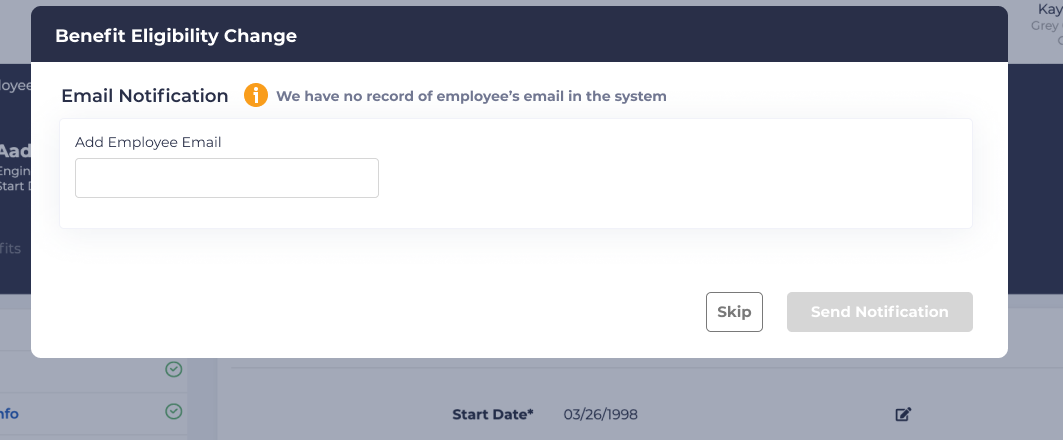
Either a new email address can be entered and saved, and a notification can be sent, or this step can be skipped, meaning no email will be sent.