During the enrollment summary, you may have a need to include some custom text. While there is some default acknowledgement text available on the page, you may wish to add or replace it with different information.
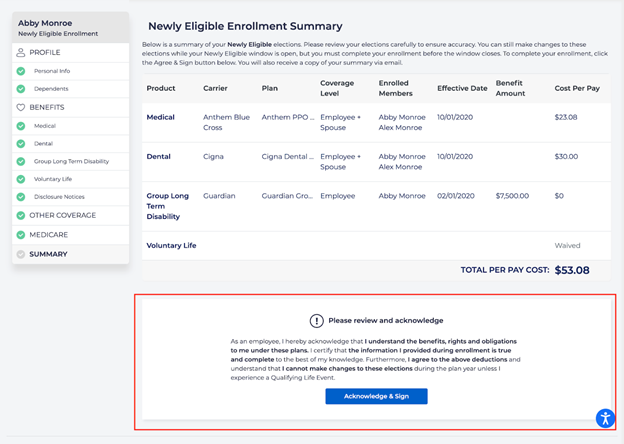
This enrollment summary information refers specifically to the shown text at the top of the page in the picture below, for the employee enrollment process.
To set this up, go to Enrollment – Customization and choose the Enrollment Summaries tab.
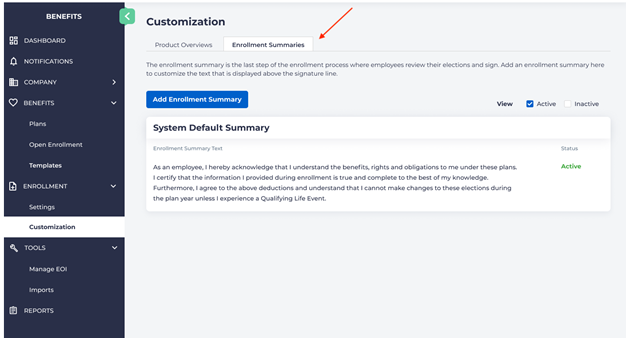
You will see a System Default Summary which is set initially for all accounts.
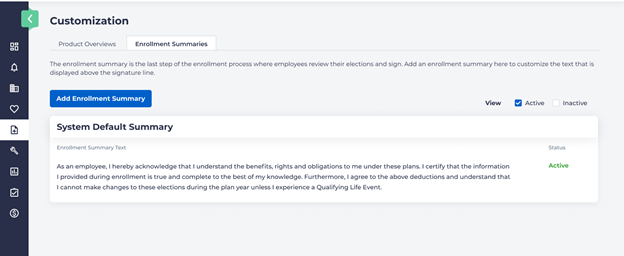
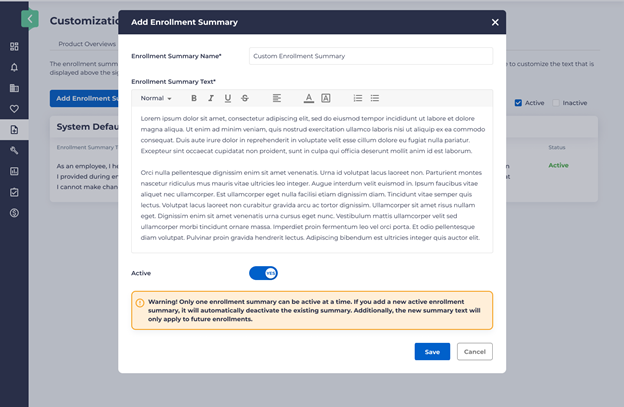
If you wish to create a custom summary, click on the Add Enrollment Summary button. You will see a popup window that looks something like below.
Enter an Enrollment Summary Name, and your custom Enrollment Summary Text.
Note that if you choose to make this summary active, it will automatically deactivate the default summary, and make it “inactive” and replace it with this one.
If you wish to see all of your summaries on the main page, click on both the “Active” and “Inactive” checkboxes:
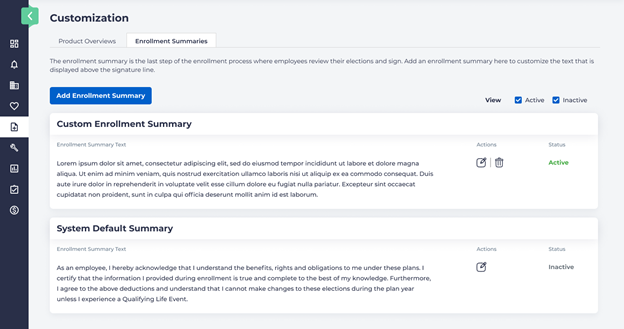
You may edit or delete any summaries by clicking on the edit button or delete buttons on the screen.