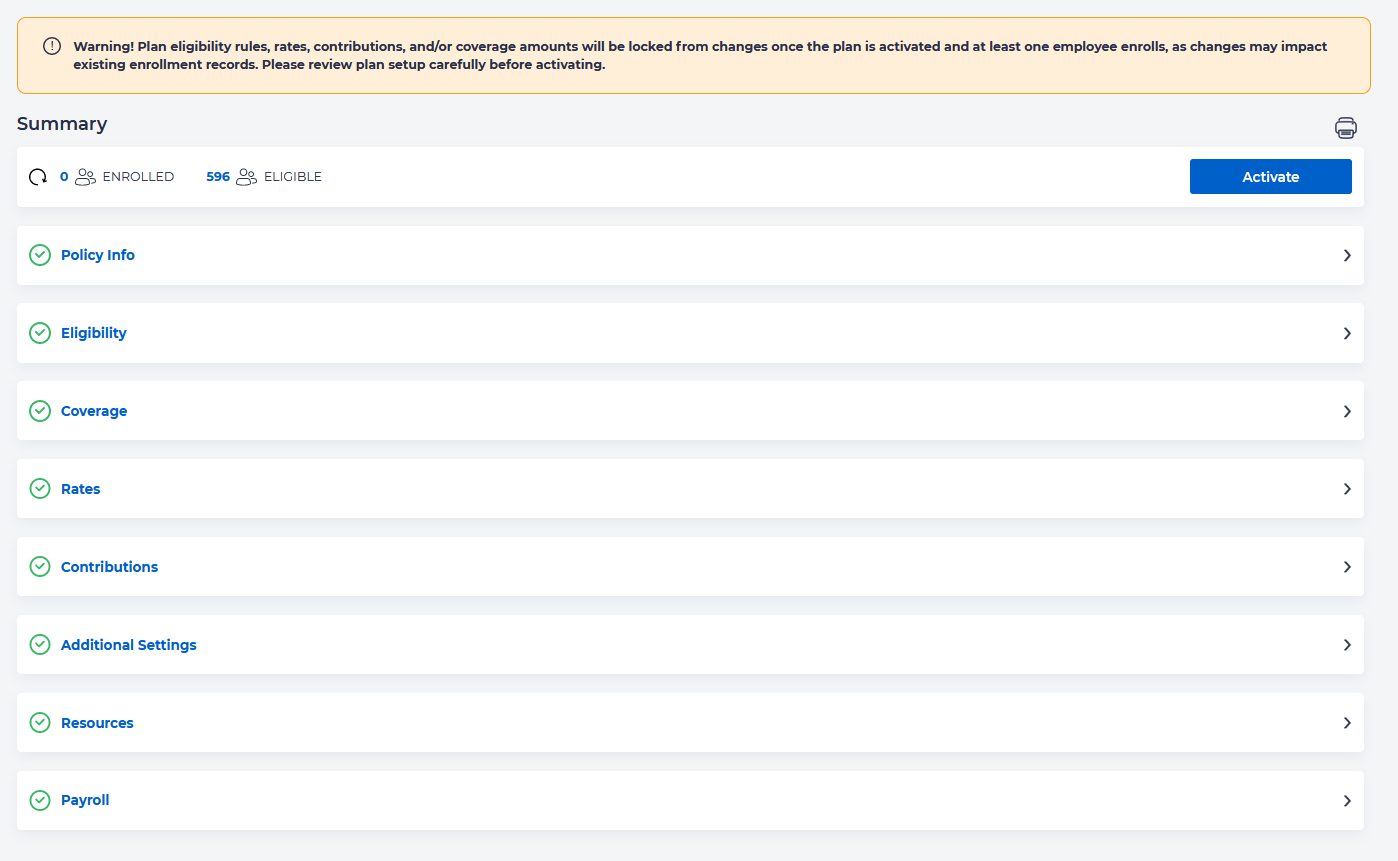
To set up a Disability plan, from the left menu, click on Benefits – Plan and click on Add Plan.
Select a Disability Product type from the dropdown.
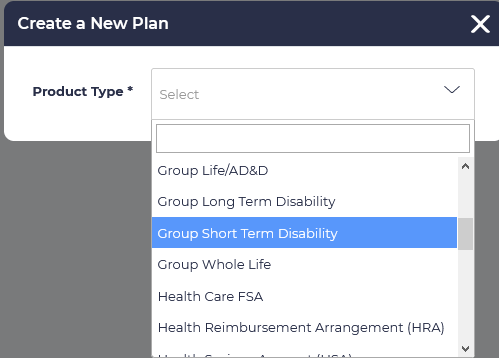
Fill in the information to include:
- Product Type (you have already selected this)
- Carrier/Provider
- Plan Name
- Effective Start Date
- Effective End Date
- Policy Anniversary Month
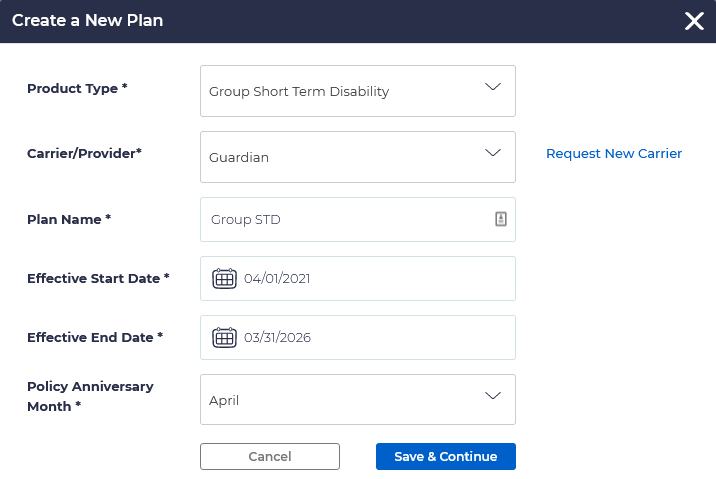
On the next screen that comes up you may enter an optional internal plan name or id, a group number, subgroup number, and change any of the other information you may have entered incorrectly.
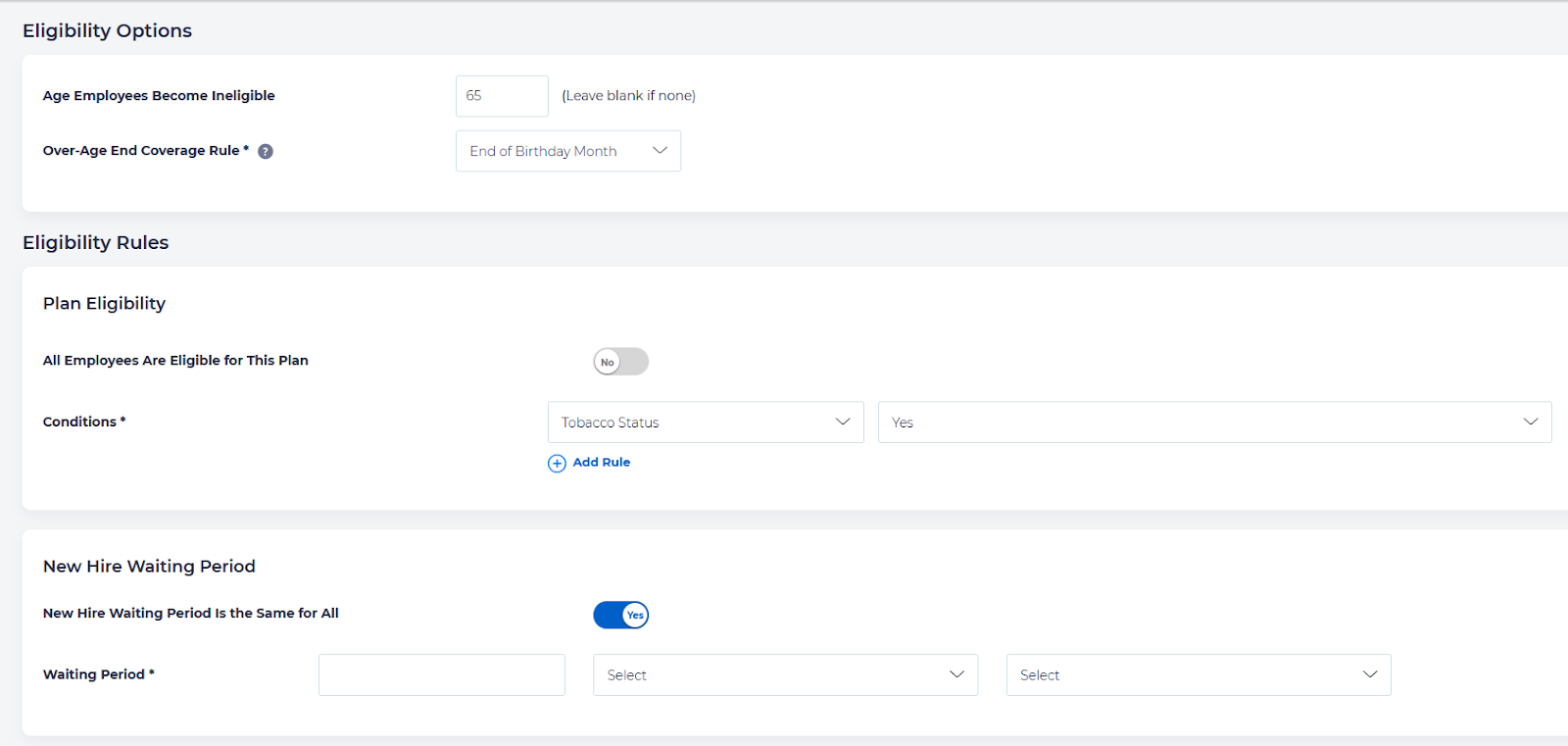
Next you will need to enter eligibility information for the plan. If there is an age that an employee becomes ineligible for the plan, you may enter it and set the rule for when the employee becomes ineligible, or if there is none, you may leave it blank.
Select whether all employees are eligible for the plan. If not, you can set the conditions where a person becomes ineligible.
You may also set a new hire waiting period for entering the plan, or it will default to the normal enrollment rules.
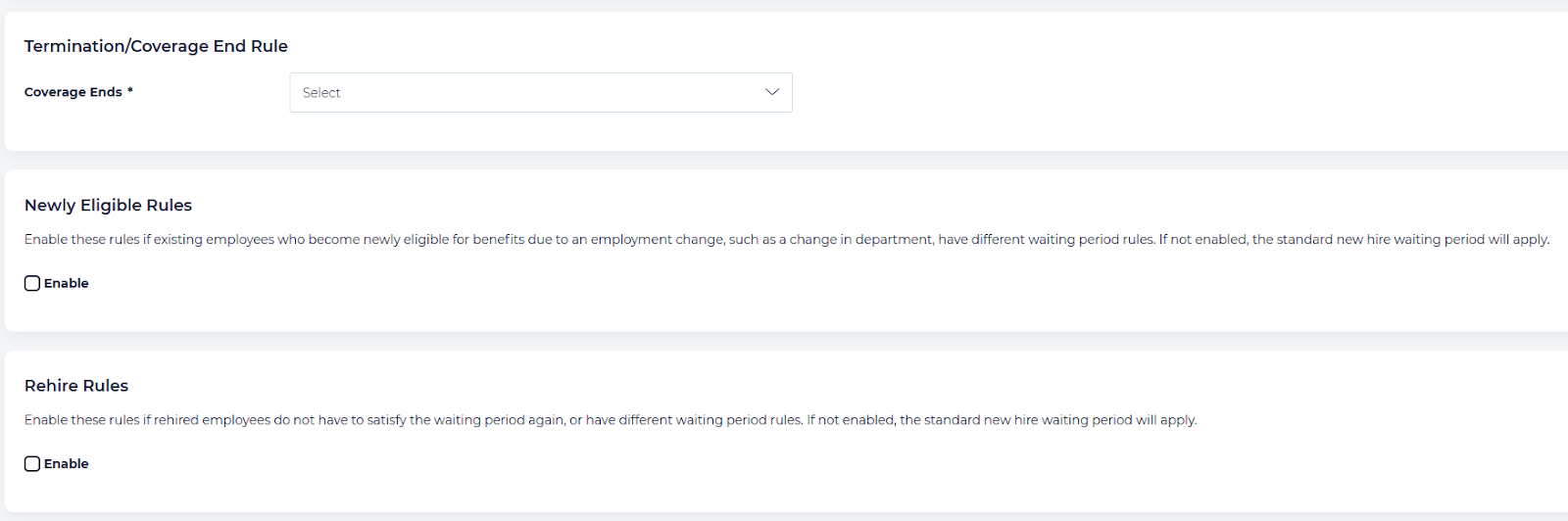
Enter information about the
- Termination/Coverage End rules
- Newly Eligible Rules (if there are differences from standard new hire waiting periods)
- Rehire rules (if the employee does not have to satisfy the waiting period for new hires)
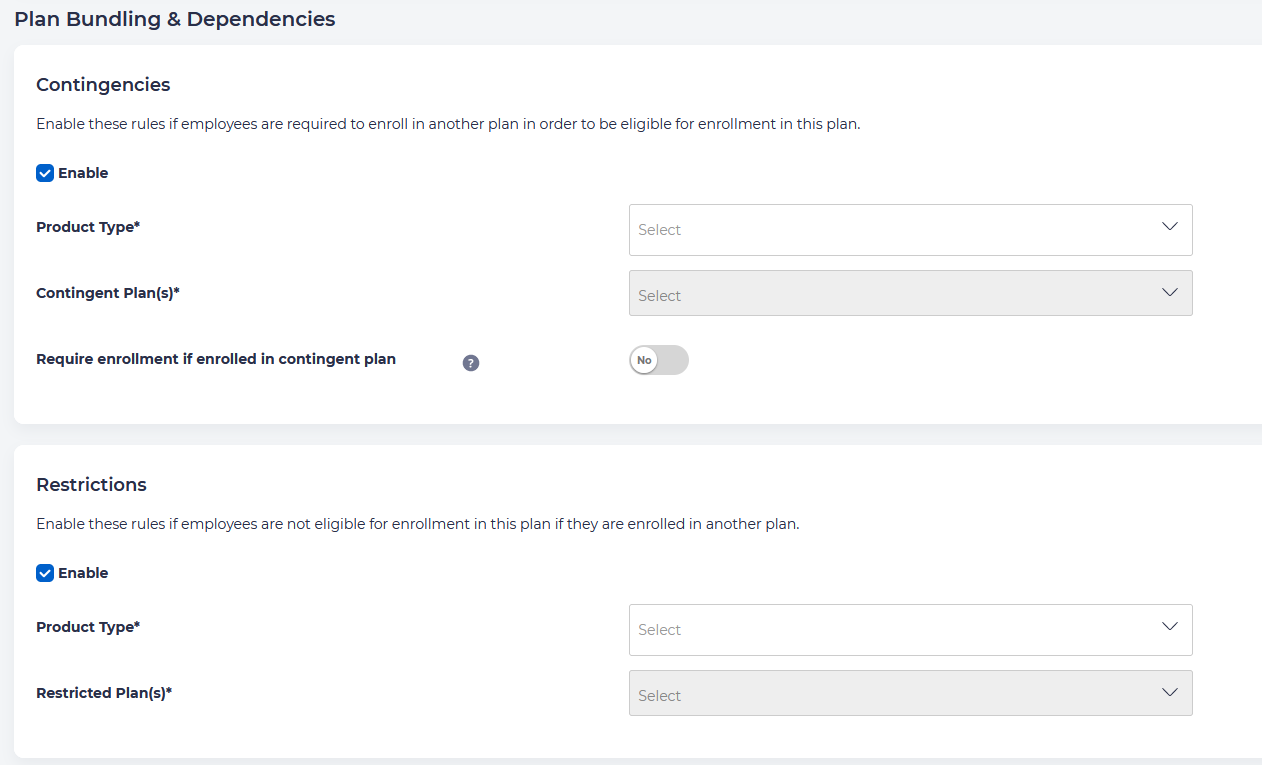
If there are any contingencies surrounding plan bundling (e.g., if an employee is required to be enrolled in another plan to be eligible), enter these. Similarly, if there are any restrictions, these may be entered at this time.
If you have set up any Eligibility Underwriting Questions, you may choose to include these to be necessary for enrolling in the plan.

Click Save & Next
On the next page you will be able to set up the coverage options for the disability plan.
Select the benefit type to be either based on percentage of earnings or increments. If you set these to be based on percentage of the employee’s weekly earnings, enter the percentage, the minimum and maximum benefit. Identify the rounding rules, how the earnings should be based (base or benefit salary), and when to update the benefit amounts.
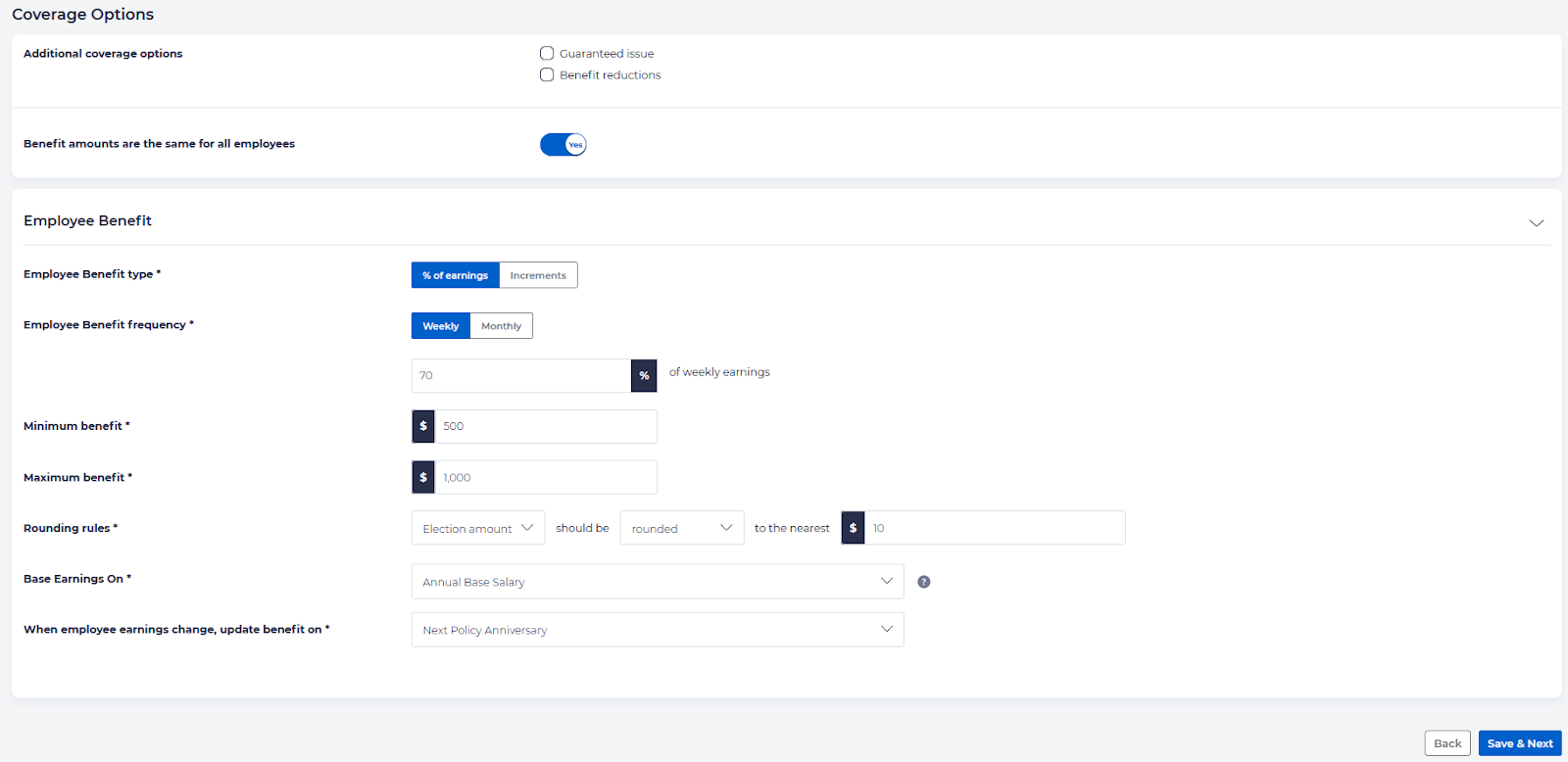
If you set the benefit to be based on increments, set the increment amount.
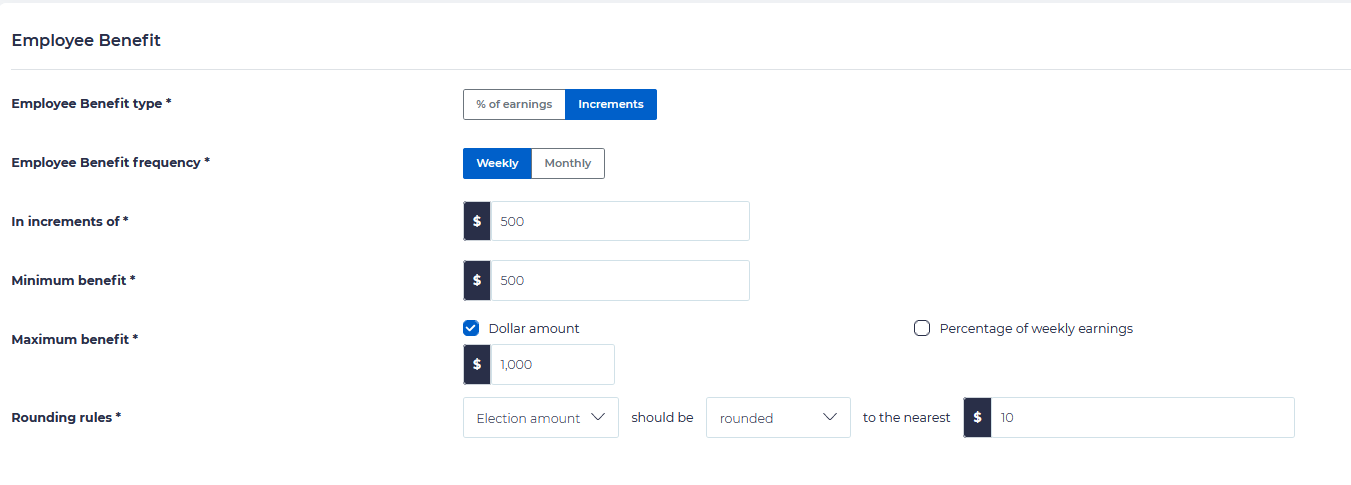
Click Save & Next.
On the next screen, you may set the employee rate options., and the amount of employee contribution rate per age, gender, and/or tobacco rates if any. You may add any number of tiers for different rates.
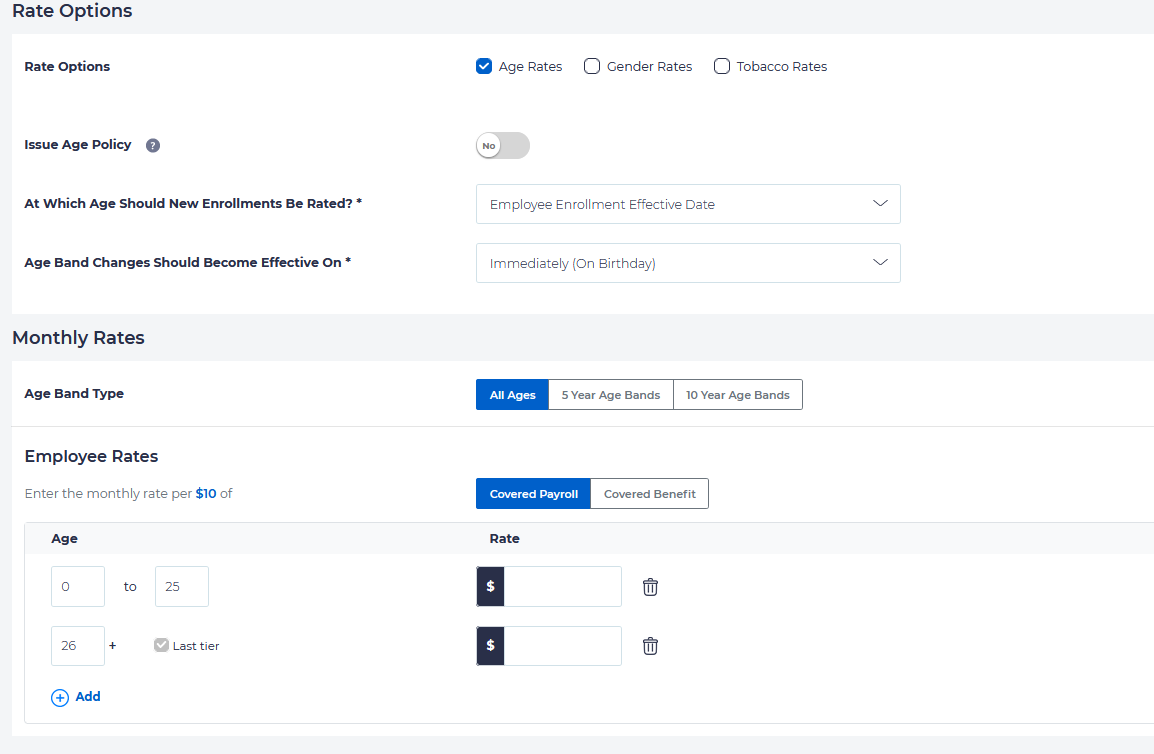
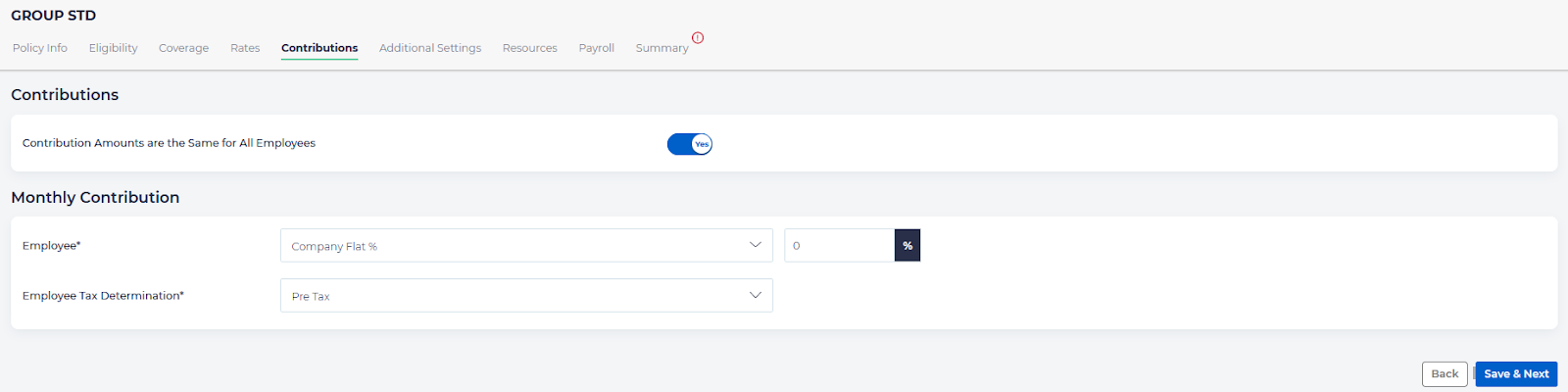
Next, set the employee contribution rate to be included in this policy.
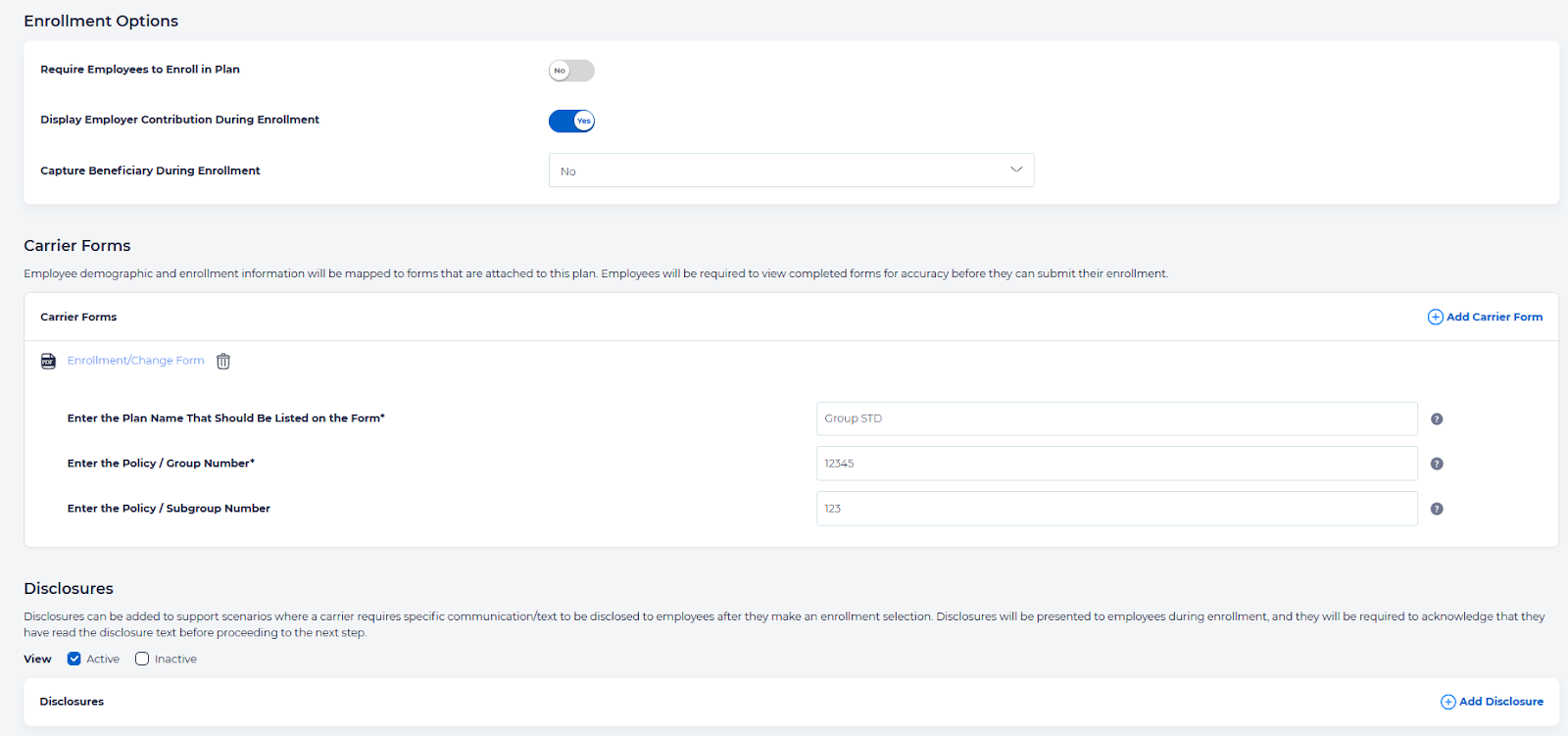
On the following screen, you may choose to set any additional enrollment options. These include:
- Require Employees to Enroll in Plan
- Display Employer Contribution During Enrollment
- Capture Beneficiary During Enrollment
Here you may add any required carrier forms required for the enrollment process, and any required plan disclosures.
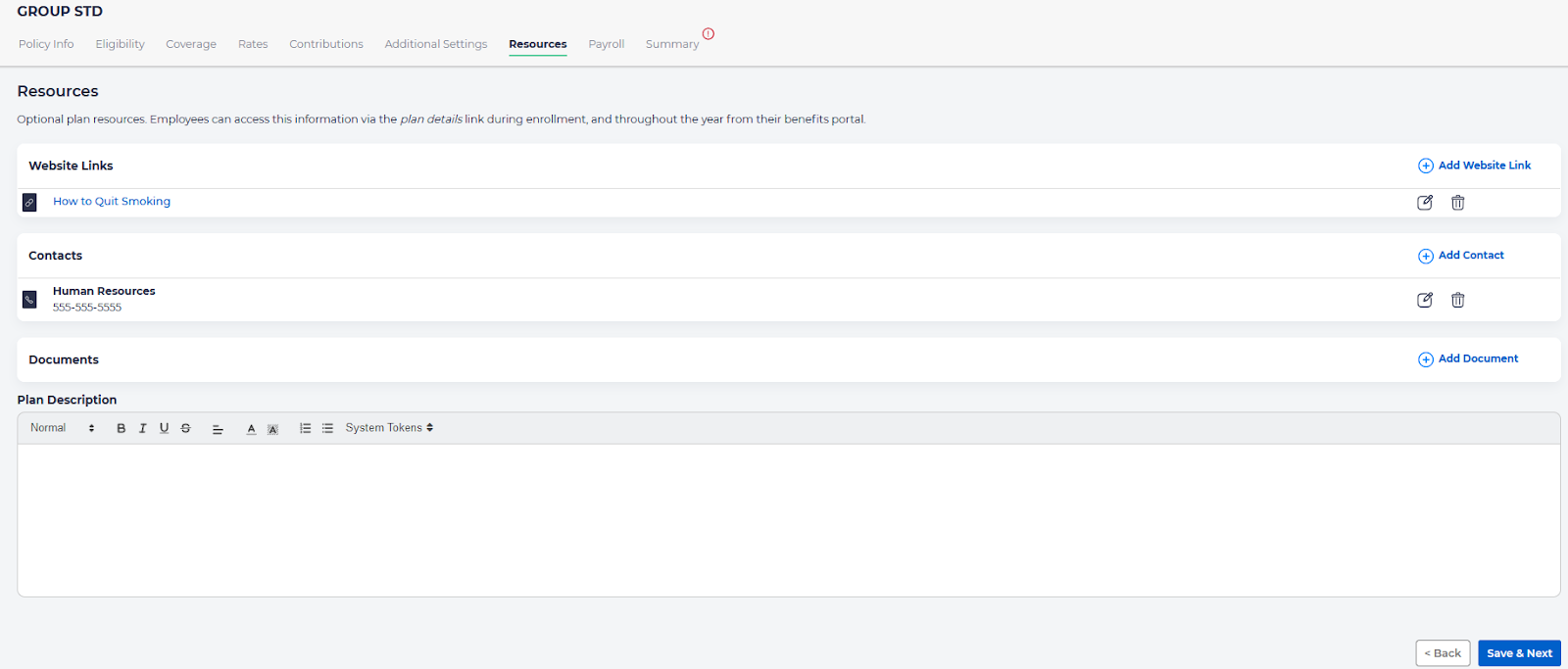
On the Resources tab, you may enter any resource links, contacts, or documents which will then be made available to the employee during their enrollment period.
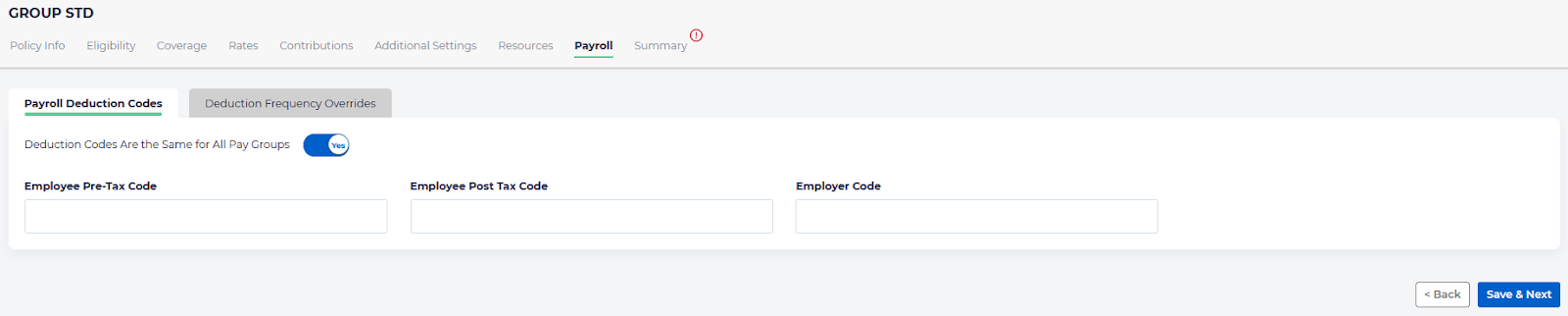
On the Payroll tab, you can set up any deductions for payroll to handle any of the expenses associated with this plan enrollment.
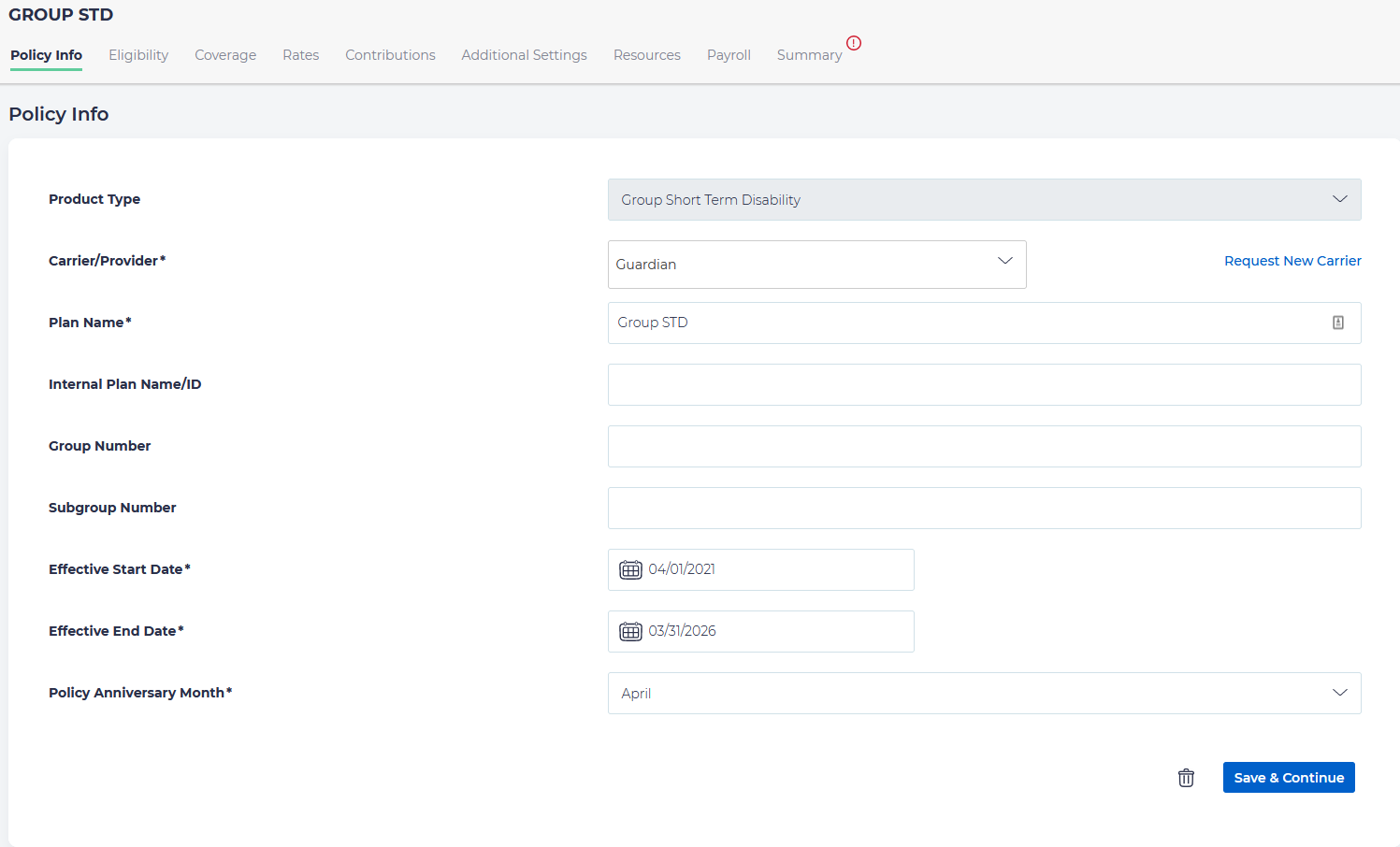
On the final Summary tab, you will find a summary of everything you entered, including any errors that have been detected in the process so you may correct them. Once the plan is ready, you may activate it.
Important: Once the plan has been activated, and at least one employee has been enrolled, the settings will be locked to future changes because it may affect employee enrollment records, so be absolutely certain you have set it up correctly prior to activation.