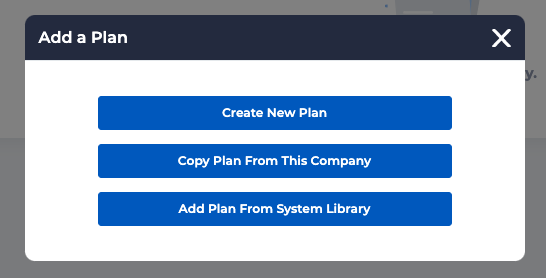
There are several options for creating a new plan:
- Create New Plan: Create a plan without any preexisting elements.
- Copy Plan From This Company: Copy a plan that was created for this company.
- Add a Plan from System Library: Copy a plan from a library available to all users.
Create New Plan
- Select Create New Plan.
- Select Medical to create a medical health plan, select Dental or Vision to create a respective plan.
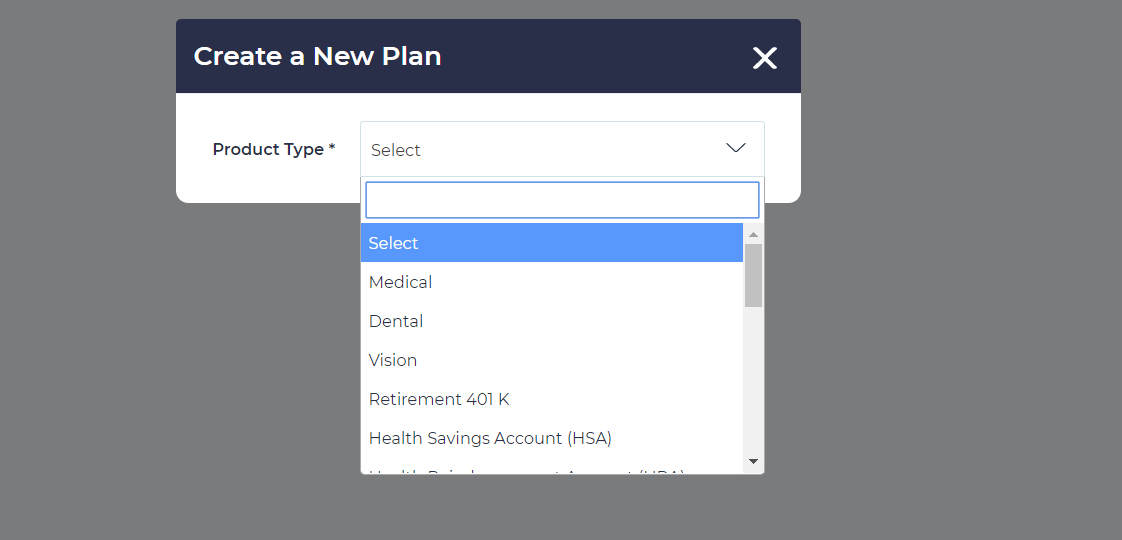
Once plan type is selected, fill out the following information:
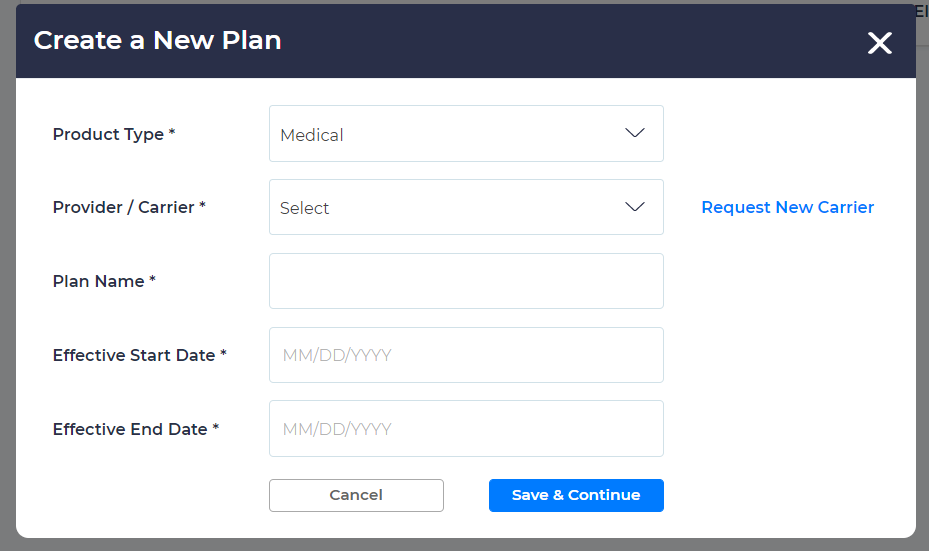
Provider/Carrier Name: Select benefit provider or carrier name from the dropdown list. User can search carrier by typing the first few letters of the carrier/provider’s name.
Plan Name: This is the name that will display to employees during enrollment.
Effective Start/End Dates: These dates indicate when the plan is effective (plan year).
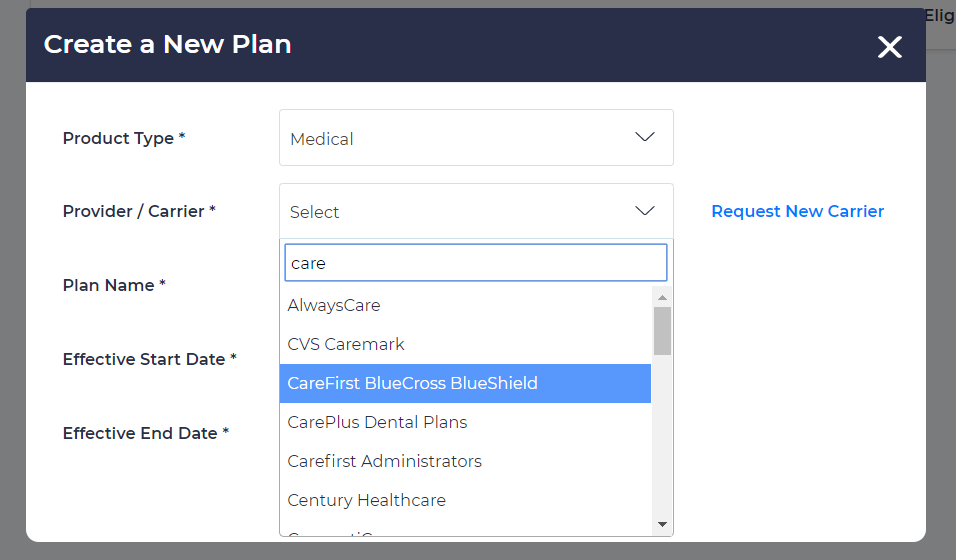
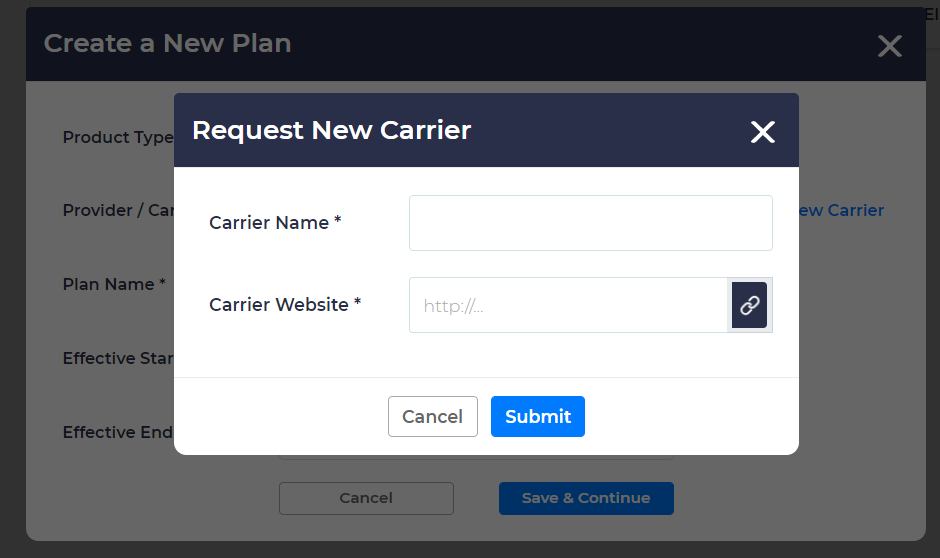
If you do not find the Provider in this dropdown list, click Request New Carrier button next to the field. This will open a new popup window to provide the Carrier Name and Carrier’s website and then submit information. This information will be picked up by our technical team and they will add the requested Carrier/Provider’s name in the dropdown list and a confirmation email will be sent once the Carrier/Provider has been added.
The reason for not allowing users to directly enter a carrier name is that there is carrier-level reporting criteria that depend on precise carrier/provider’s name. Two different users could potentially enter the same name differently. An example is Care First versus CareFirst. This can lead to errors in carrier-level reporting. Our technical team will pick up and resolve all requests on a daily basis.
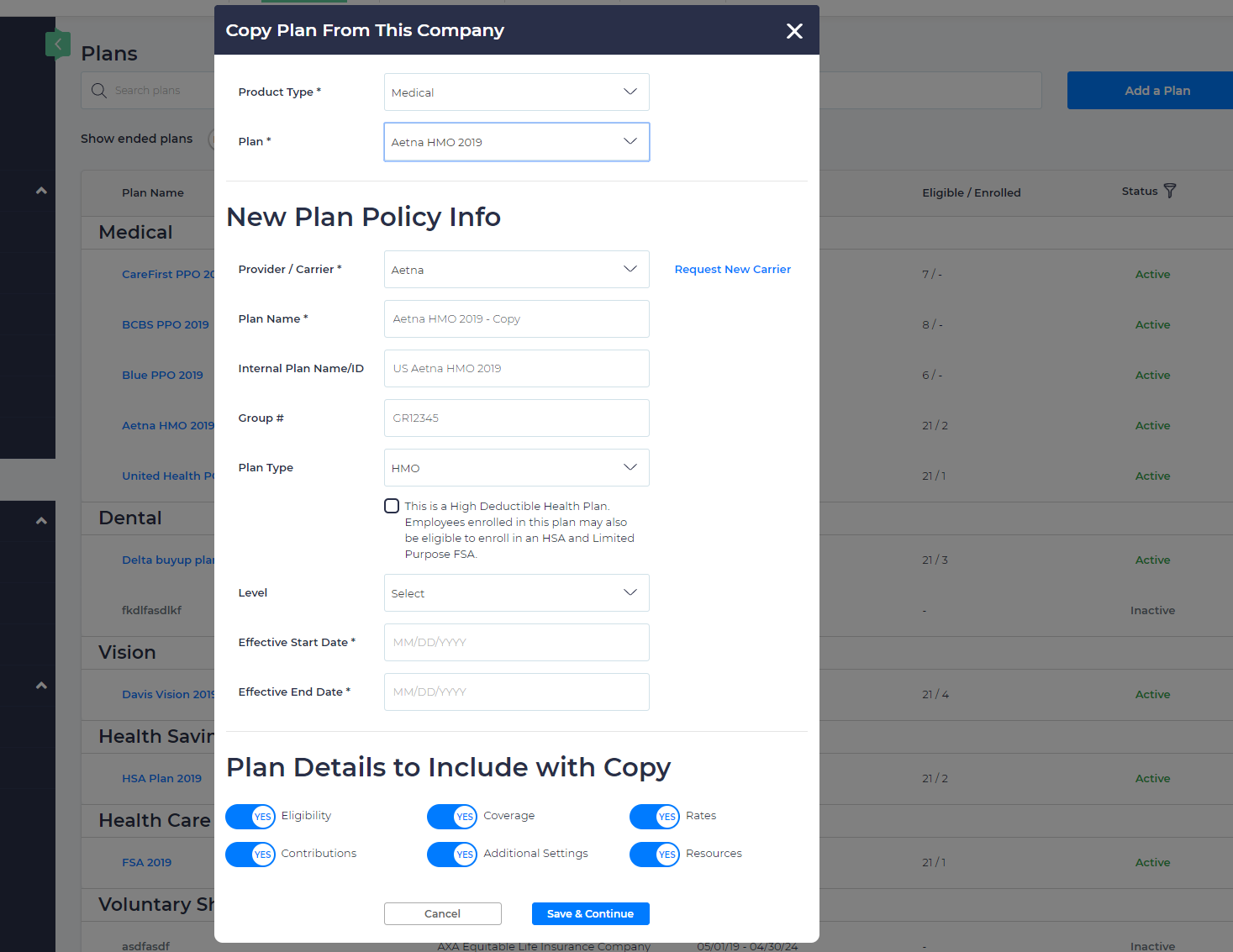
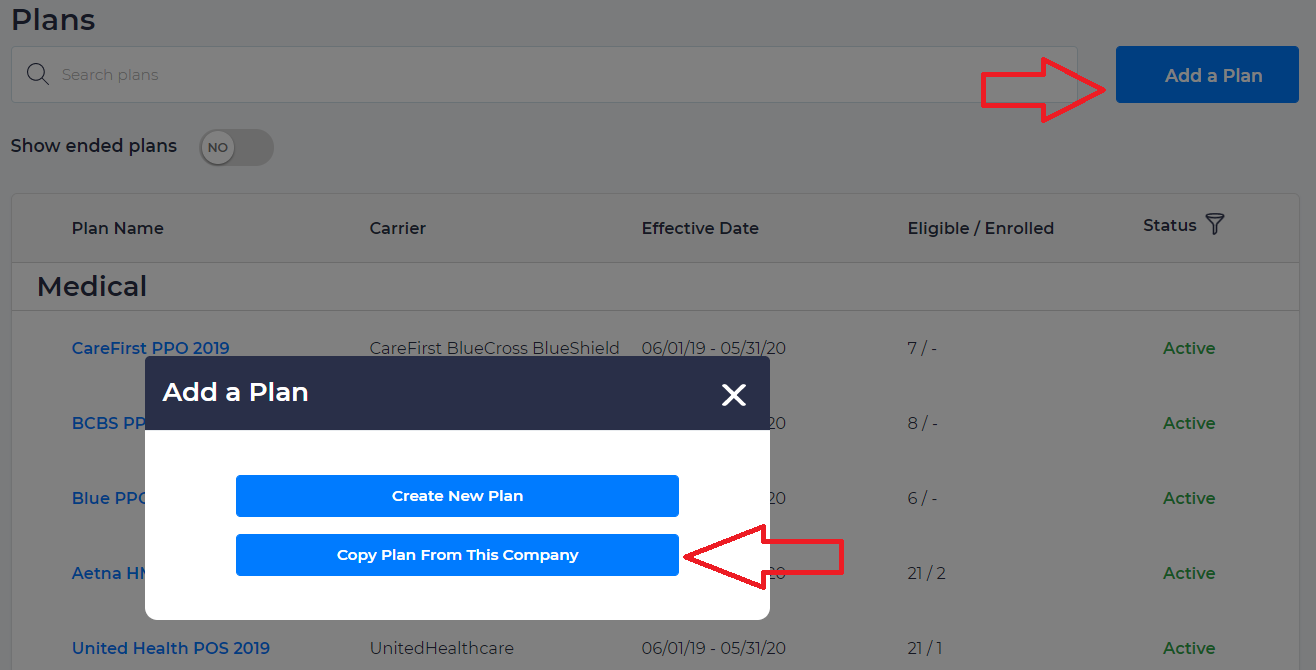
Copy Plan From This Company
If company plan contributions are identical across all plans (the only changes are plan details, coverage, and plan rates), you can save time on plan set up by copying an existing plan (in the same company) and make necessary changes to the plan details. To add a new plan by copying an existing plan, user clicks on Add a Plan button on the plan page, then select the option to Copy Plan from this Company.
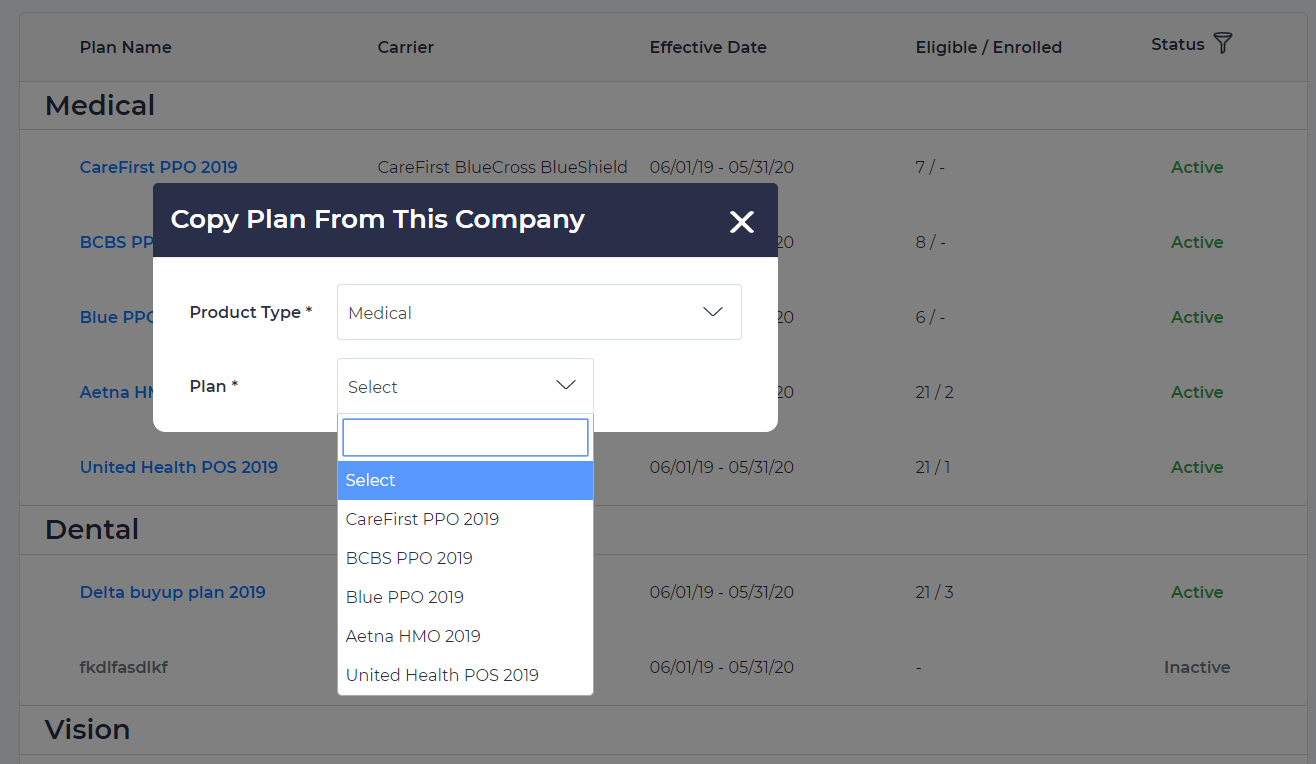
Now, select Product Type (benefit type) from the dropdown list. Once Product type is selected, you will have an option to select a plan from all active and inactive plans previously set in the company which needs to be copied.
A popup will open up which will have details of the plan which is being copied. You have an option to change plan name, Carrier/Provider Name etc. You will need to provide Effective start date and Effective end date.
There is also an option to select what structural part of the existing plan you want to copy, such as Eligibility, Coverage, Rates, Contributions, Additional Settings, and Resources. The default is that all information will be copied to the new plan. Now, click Save & Continue.