If an employee is no longer eligible after making a change, upon saving, you will receive a popup modal which looks something like the below image:
The final column, labeled Enrollment End Date will display the effective end date that will be applied to their coverage for each plan that is affected.
If you click “Cancel,” the page will not be saved, and there will be an opportunity to modify the employee’s effective date.
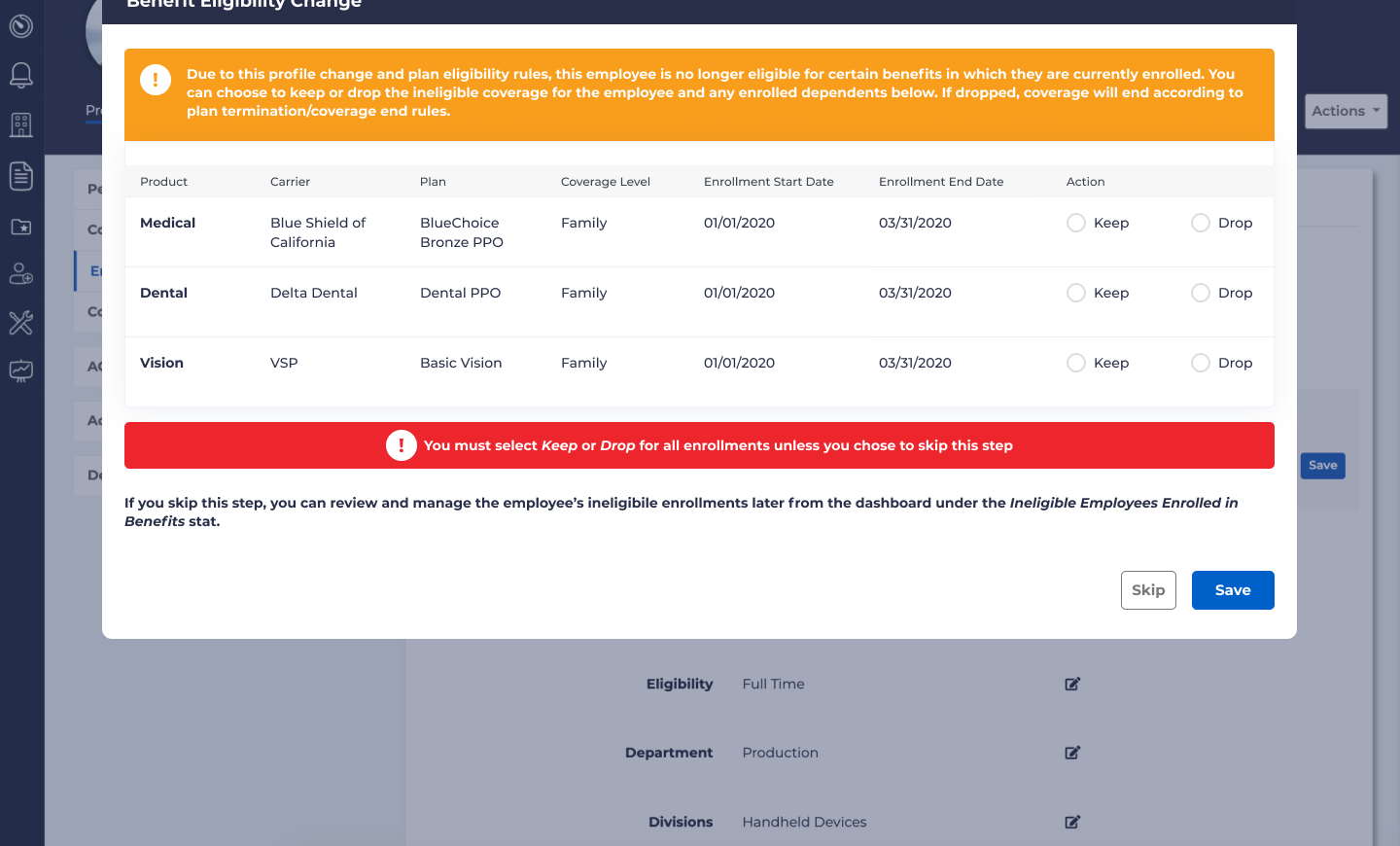
If you click “Save,” then the plan the following screen will be displayed:
This screen provides two Action columns on the far right, where an indicator appears for each affected plan. Two options are provided:
- Keep which will override the enrollment rules and the employee’s enrollment in the plan will remain unchanged.
- Drop will update the end date for the employee’s enrollment in the plan to be what was specified on the previous screen.
At the bottom of the screen are two buttons, “Skip” and “Save.” If you click “Skip,” no changes will be made to the employee’s enrollments; they will remain enrolled with the original end date.
This will result in a change to the dashboard statistic, labeled “Ineligible Employees Enrolled in Benefits.” This can be manipulated or changed later from the Dashboard.
For all scenarios where an employee is no longer eligible for any reason, if you try to click “Save” without selecting either “Keep” or “Drop” an error message will appear:
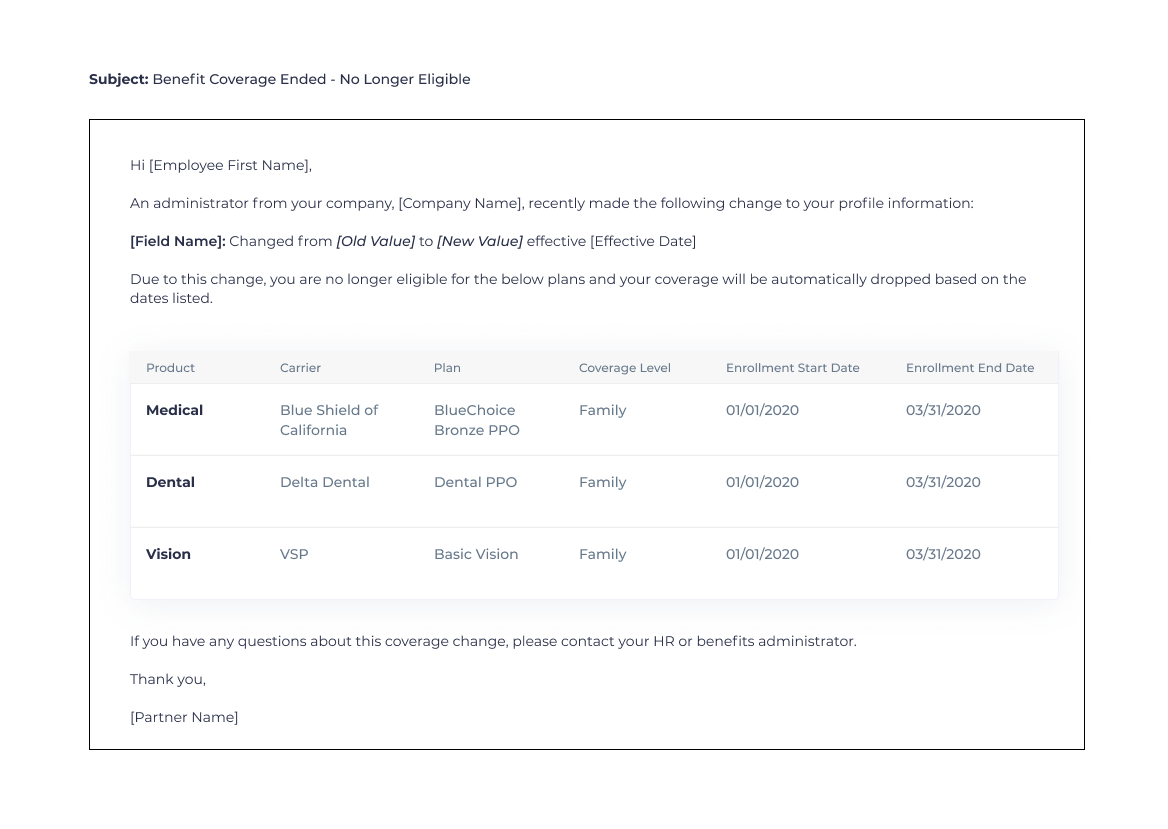
If you click “Save,”the changes made above will be saved; if any items had a “Keep,” the “Ineligible Employees Enrolled in Benefits” indicator will be updated to show this discrepancy. If “Drop” is selected for any plan, then the employee will be sent a No Longer Benefit Eligible email, with the changes that have been made: