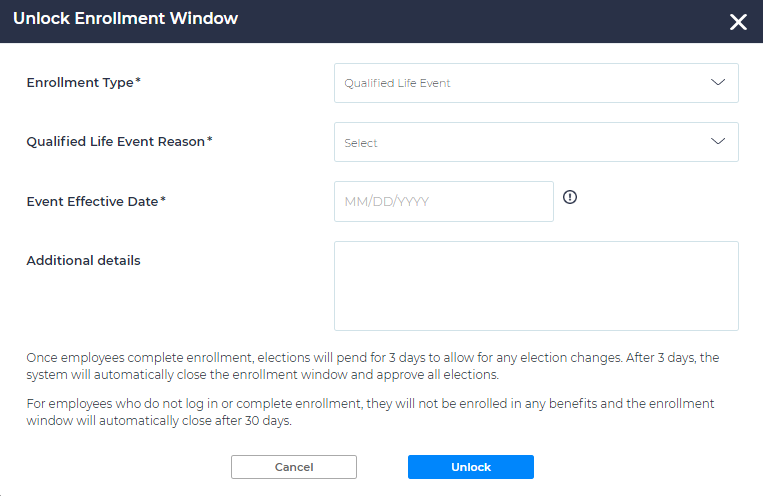
To allow your employees to make new elections or qualified changes to their enrollments, you will first need to Unlock an Enrollment Window. To unlock all employees for Open Enrollment, please refer to the Open Enrollment Setup Guide.
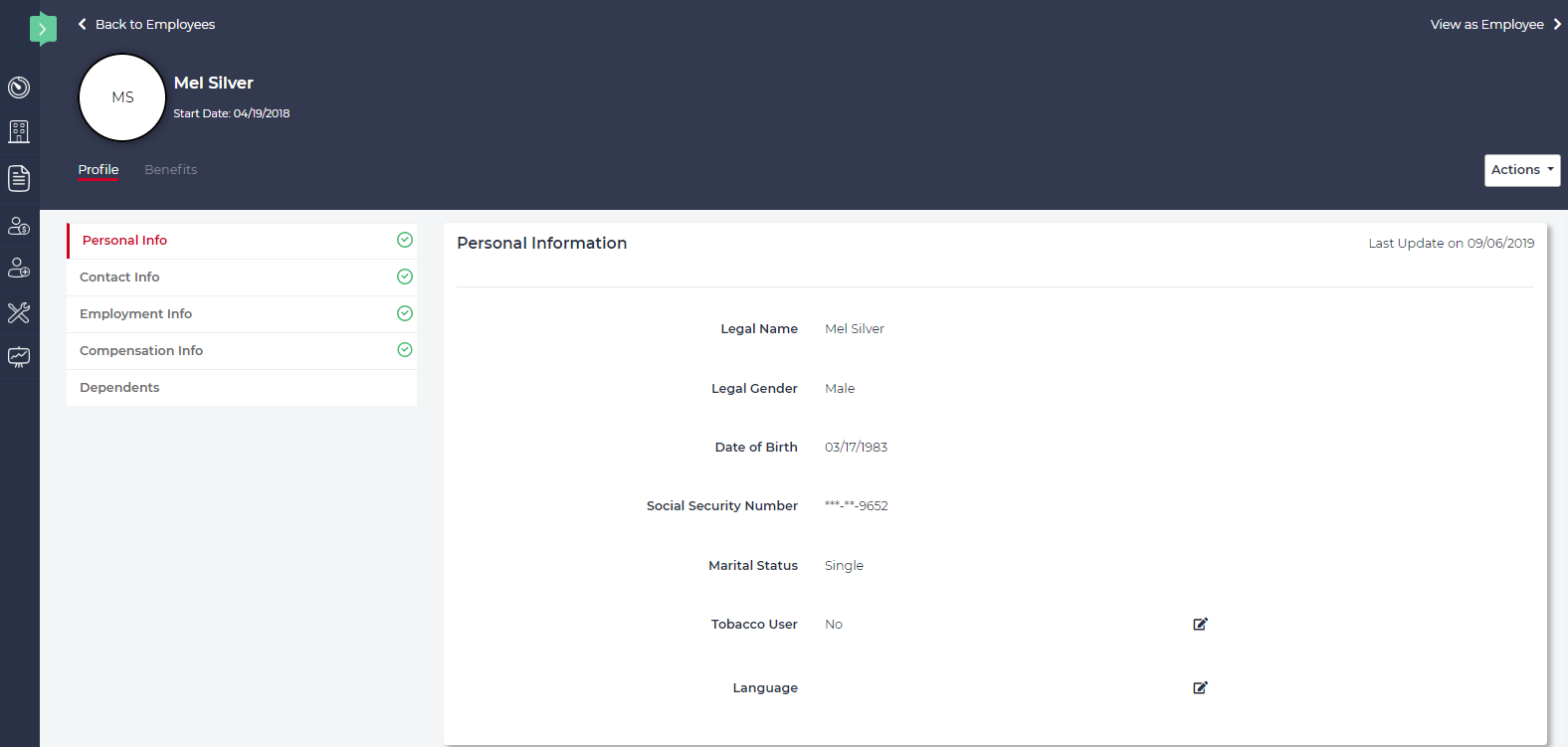
- From the Employees tab, select the employee you wish to unlock.
- Upon selecting an employee, you’ll be brought to their profile page. From here, select their Benefits tab from below their name.
- From the Benefits tab, you will see any currently unlocked enrollment window, a summary of benefit elections if they have previously enrolled, and a button to Unlock an enrollment window.
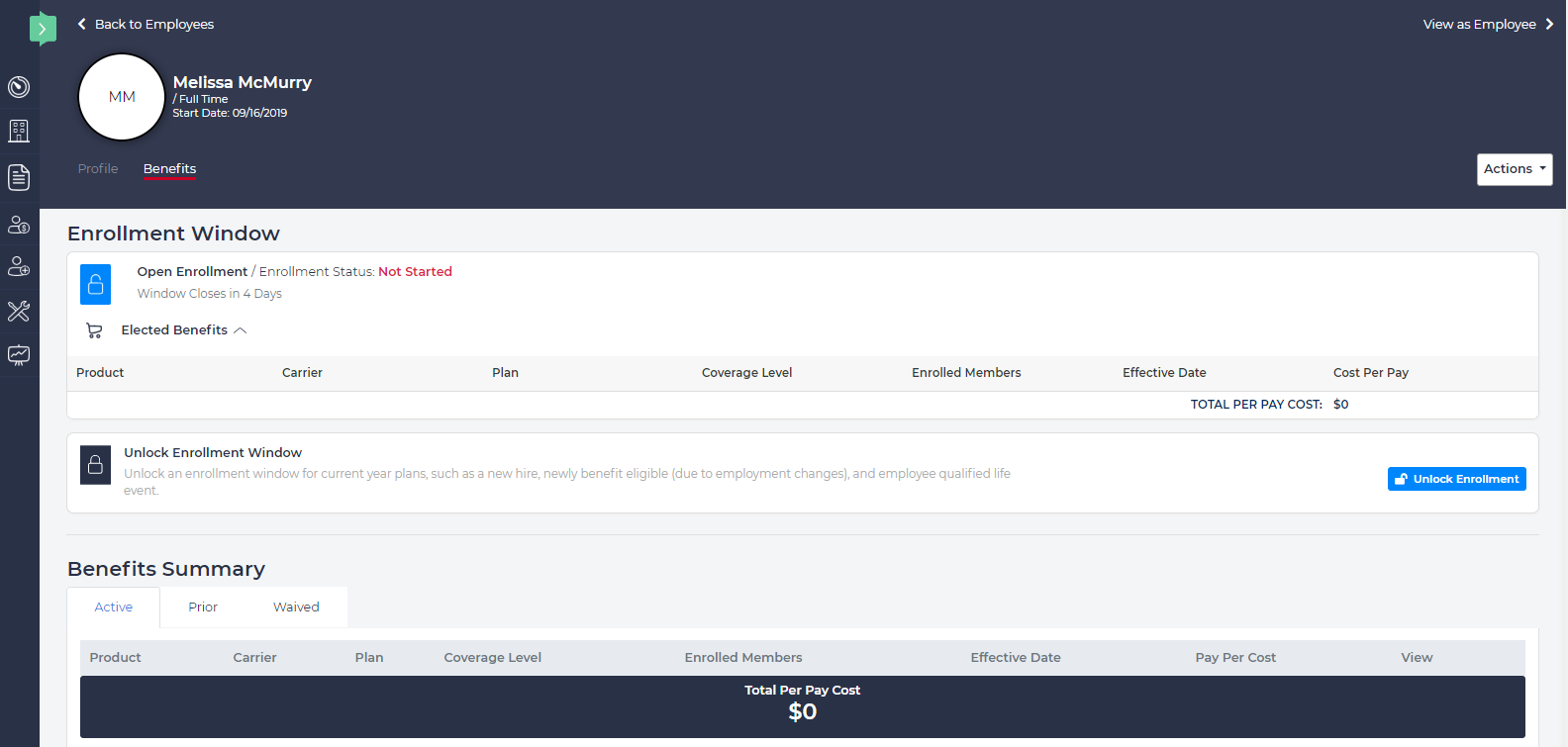
- To open the system for an employee to enroll or make election changes, click the Unlock Enrollment button and select the Enrollment Type.
- New Hire - The system will automatically determine the employee’s benefits effective date based on their date of hire and waiting period rules configured during plan set up.
- Newly Eligible - Enter the date of change and the system will automatically determine benefits effective date based on waiting period rules configured during plan set up.
- Qualified Life Event - Select a “Qualified Life Event Reason” from the drop down menu and enter the Life Event date. The system will automatically determine benefits effective date based on waiting period rules configured during plan set up.