Pay Groups allow you to set your Employees’ pay frequency (weekly, biweekly, semi-monthly, monthly). After the initialization process the most common pay periods will be added to your Pay Groups. You are able to add more if required, but these will handle most of your employee’s needs. For more information on Pay Groups or creating a custom Pay Group, please see our support documentation.
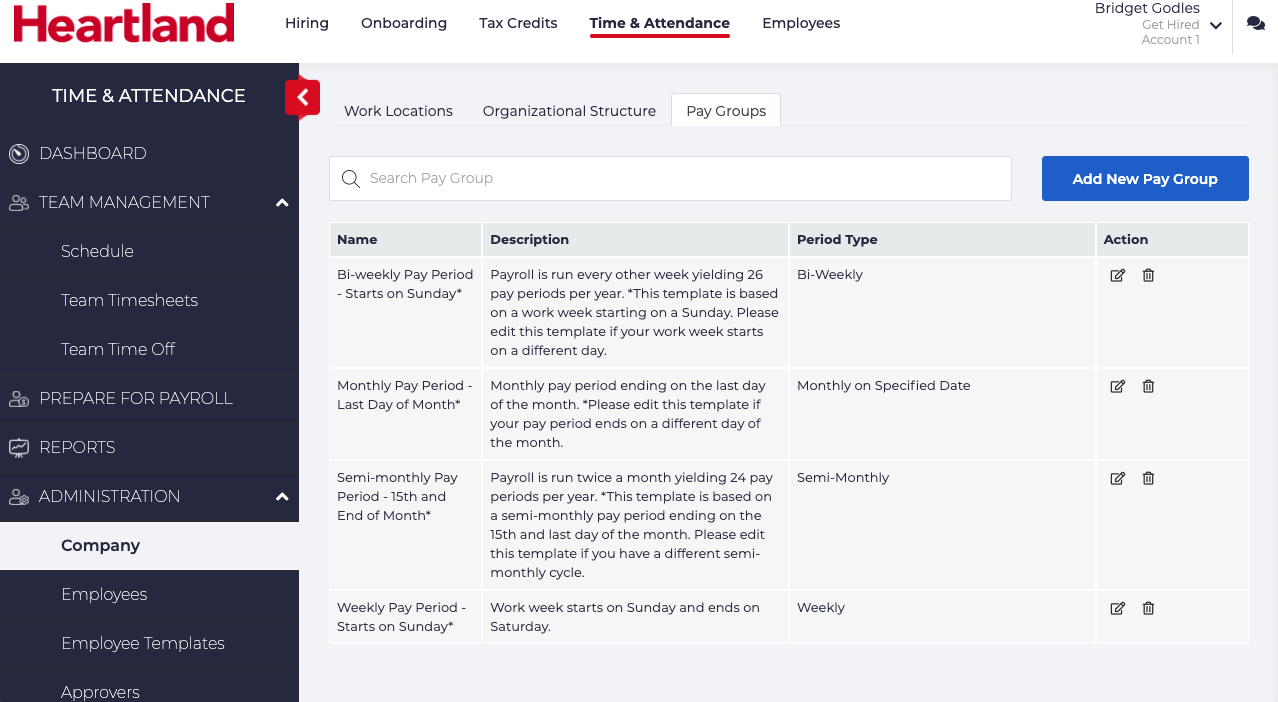
You will select and edit the Pay Group that most closely matches your current pay period. For example, if your pay period runs weekly from Monday to Sunday, you will edit the Weekly Pay Group and update the pay period accordingly.
To update the pay group you need, follow these steps:
- Login to the Heartland Time page.
- Click ADMINISTRATION > Company from the left navigation panel.
- Click Pay Groups from the top menu tab.
- Click the Edit icon
 for the pay group that most closely matches your schedule.
 - Update the following:
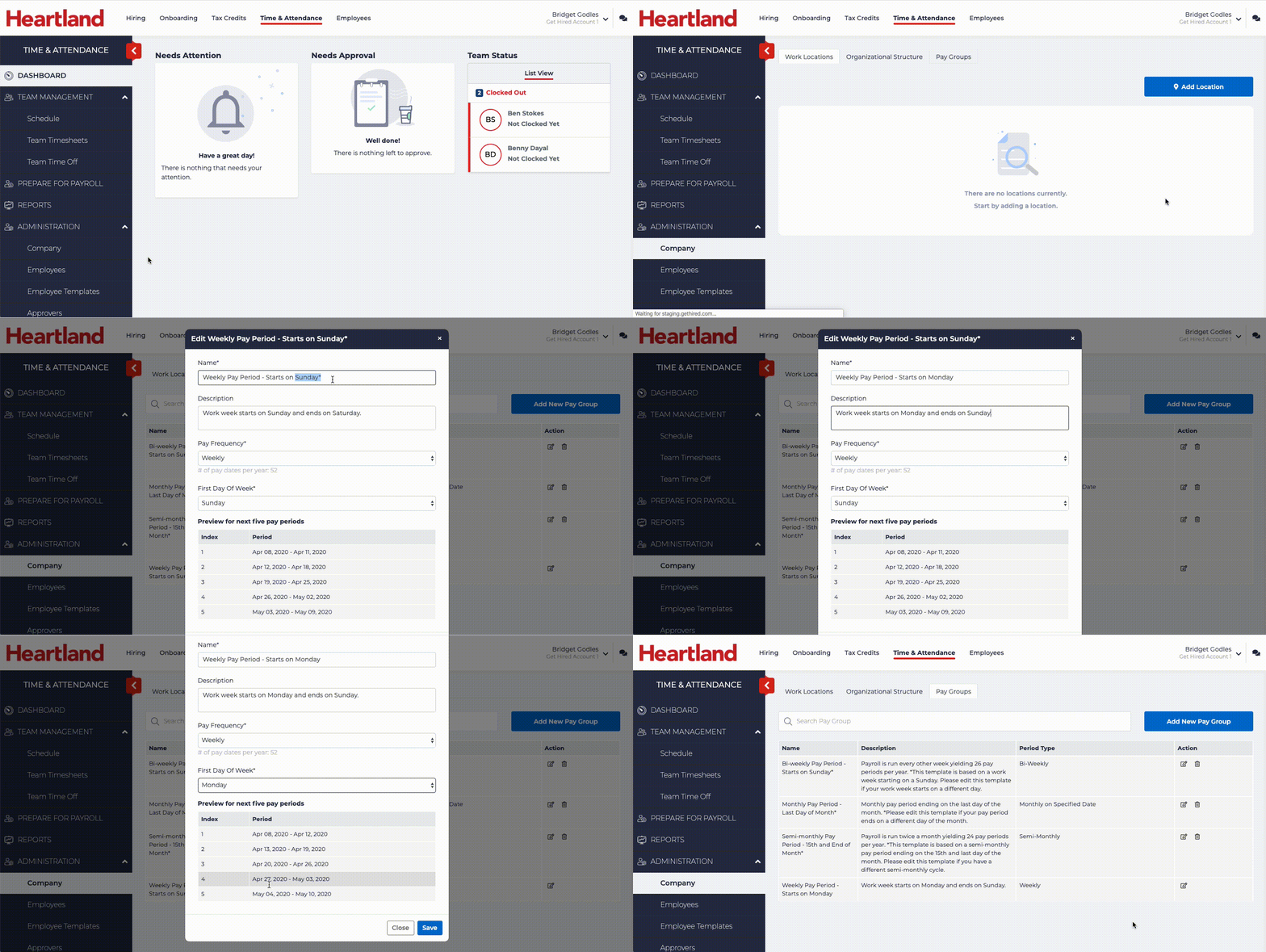
- Name: Update the name to your schedule. For example: If you are updating the weekly schedule and your work week starts on a Monday, then update the name to Weekly Pay Period - Starts on Monday.
- Description: Update the description to fit your schedule. For example: If updating a weekly schedule and it starts on a Monday rather than a Sunday, update the description to reflect this.
- Pay Frequency: If required, update the pay frequency.
- First Day of the Week: Set the starting day for your employee’s work week. For example: If your work week starts on Monday, set this to Monday.
- The Preview section will display the next five pay periods so you can verify these settings are accurate.
- Click Save when complete.
The following is an example of updating a Weekly Pay Group to start on Monday: