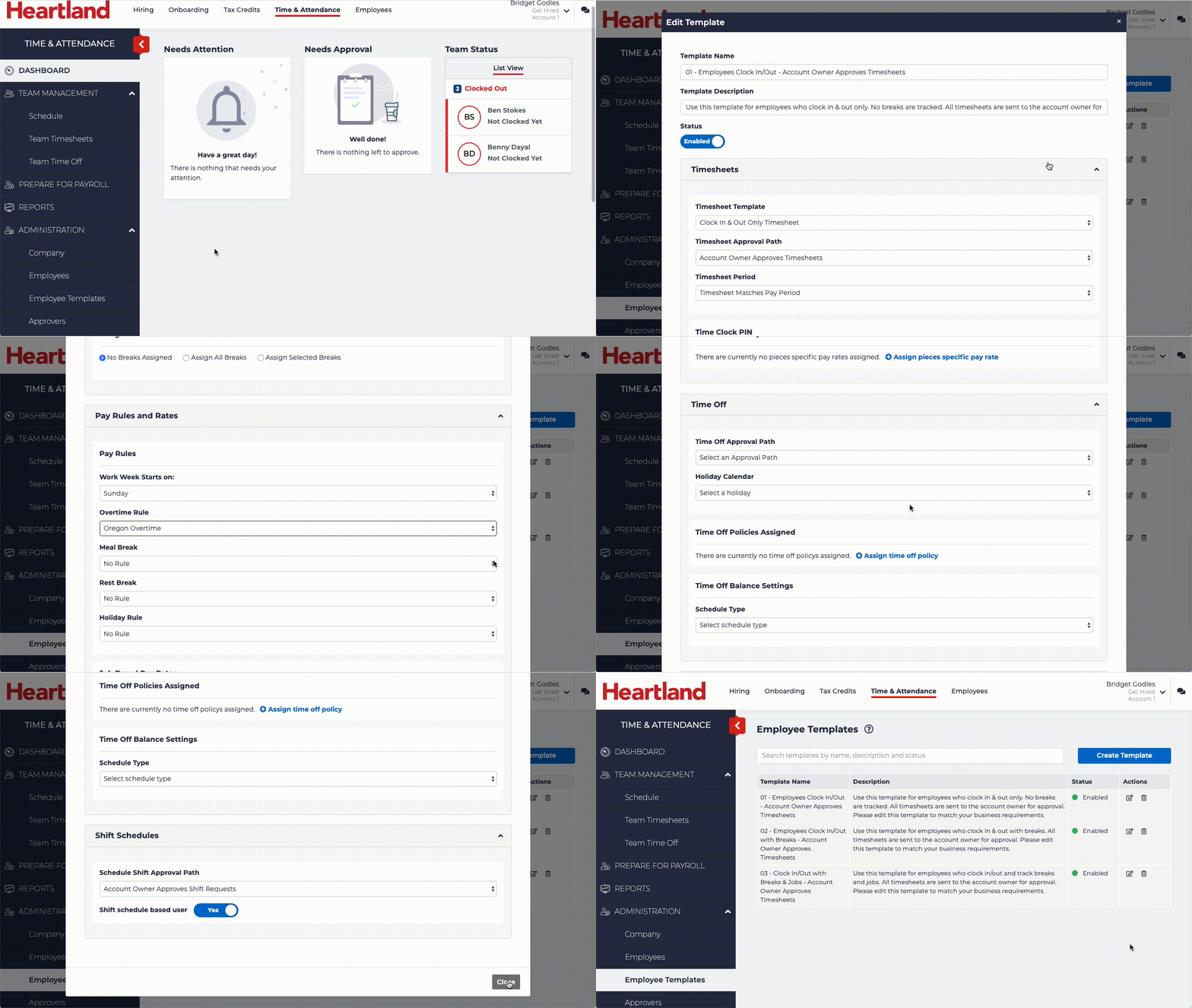
With the Pay Groups, Overtime Rules, and Pay Codes configured, we can now update the Employee Templates. These templates are used to rapidly set up your employees pay periods and other settings without having to set these attributes manually.
Multiple Employee Templates can be configured based on how your Employees are organized in your company (for example: hourly vs salary, different departments, etc).
By default, the following Employee Templates are available:
- 01 - Employees Clock In/Out - Account Owner Approves Timesheets
- 02 - Employees Clock In/Out with Breaks - Account Owner Approves Timesheets
- 03 - Clock In/Out with Breaks & Jobs - Account Owner Approves Timesheets
Note that for these default Employee Templates the Account Owner will review and approve timesheets with these templates applied.
Employee Templates can include other customizations such as Rest Break policies, Holiday Rules, and other features. Administrative rules can be used to allow administrators to approve templates. For more information, please see the Heartland Time support documentation.
To update your Employee Templates to match your company’s requirements:
- From the left navigation panel, click Administration > Employee Templates.
- Click the Edit icon
 for the Employee Template to update.
 - Set the following in Pay Rules and Rates:
- Work Week Starts on: Set the date the work week will start.
- Overtime Rule: The Overtime rule that applies to your employees.
- Set the following in Time Off:
- Holiday Calendar: If your company is closed on New Years Eve and Christmas, select Company Observed Holidays. If your company does not observe holidays, select No Holidays. For updating your holidays, please see the Heartland Time support documentation.
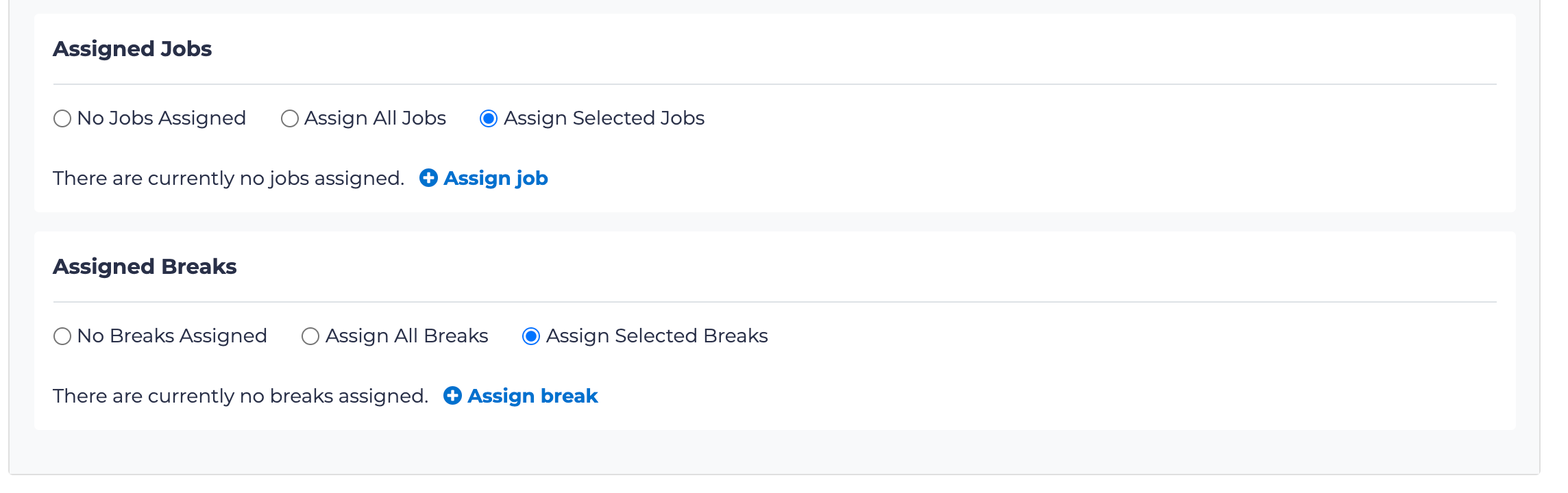
- There are two important settings to consider: Assigned Jobs and Assigned Breaks. Select these values to be Assigned Selected Jobs and Assigned Selected Breaks, then select the POS Jobs that will be synced between the POS and Heartland Time. Failure to do so could cause mismatches, since your Heartland Time may have more jobs than the POS does.
- When finished, select Close. The settings will be automatically saved.