Before using Heartland Restaurant with Heartland Time, you must complete synchronizing your Heartland Payroll system with Heartland Time. This process is detailed in the Heartland Time Quick Start Guide. Complete that process before moving onto synchronizing Heartland Restaurant with Heartland Time.
Configure Heartland Payroll to Heartland Time
The first time you use Heartland Time, a Heartland support rep will assist in the initial setup. If you have questions, feel free to reach out to them at any time.
The Heartland Time Account Configuration - Quick Start Guide is designed to help users who are already using Heartland Payroll to get up and running with Heartland Time. We recommend you review and complete the guide in its entirety if you are new to Heartland Time before proceeding with your Heartland Restaurant to Heartland Time integrations.
Once your Heartland Payroll to Heartland Time configuration is complete, then the setup between Heartland Restaurant and Heartland Time can proceed.
The first time your Heartland Payroll, Heartland Time, and Heartland Restaurant are connected, a Heartland support rep will assist in the initial setup process. We encourage users to use this guide when updating their staff information and to verify their accounts.
- IMPORTANT NOTE: These steps are important in verifying the settings between Heartland Payroll, Time, and Restaurant are correctly configured. Failure to do so can cause payroll delays and inaccurate payroll submission.
Configure Heartland Restaurant Job Types and Labor Categories
Jobs are organized in Heartland Restaurant through Labor Categories and Job Types.
- Labor Categories: The job groups that define job organization.
- Job Types: The specific jobs that staff are assigned to.
For example, you may have two Labor Categories: Bar Staff and Cashier Staff. Bar Staff include jobs that can mix drinks, while Cashier Staff accept customer payments.
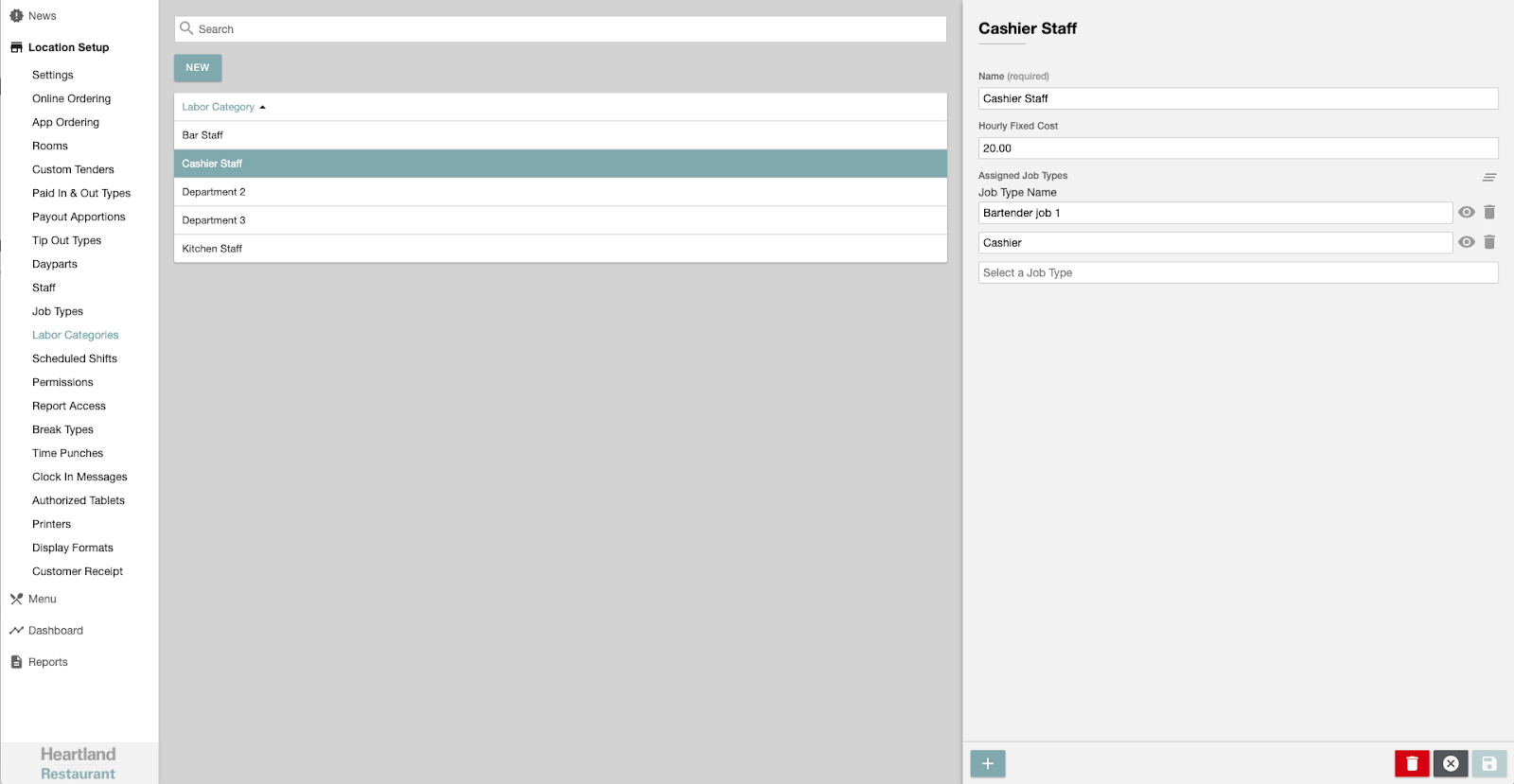
Staff are assigned to specific Job Types. For example, a staff member may be assigned Bartender Job 1, Cashier, Etc. Staff may be assigned to multiple jobs that they can punch into. For example, a staff member may work one shift as a cashier, and another shift as a server.
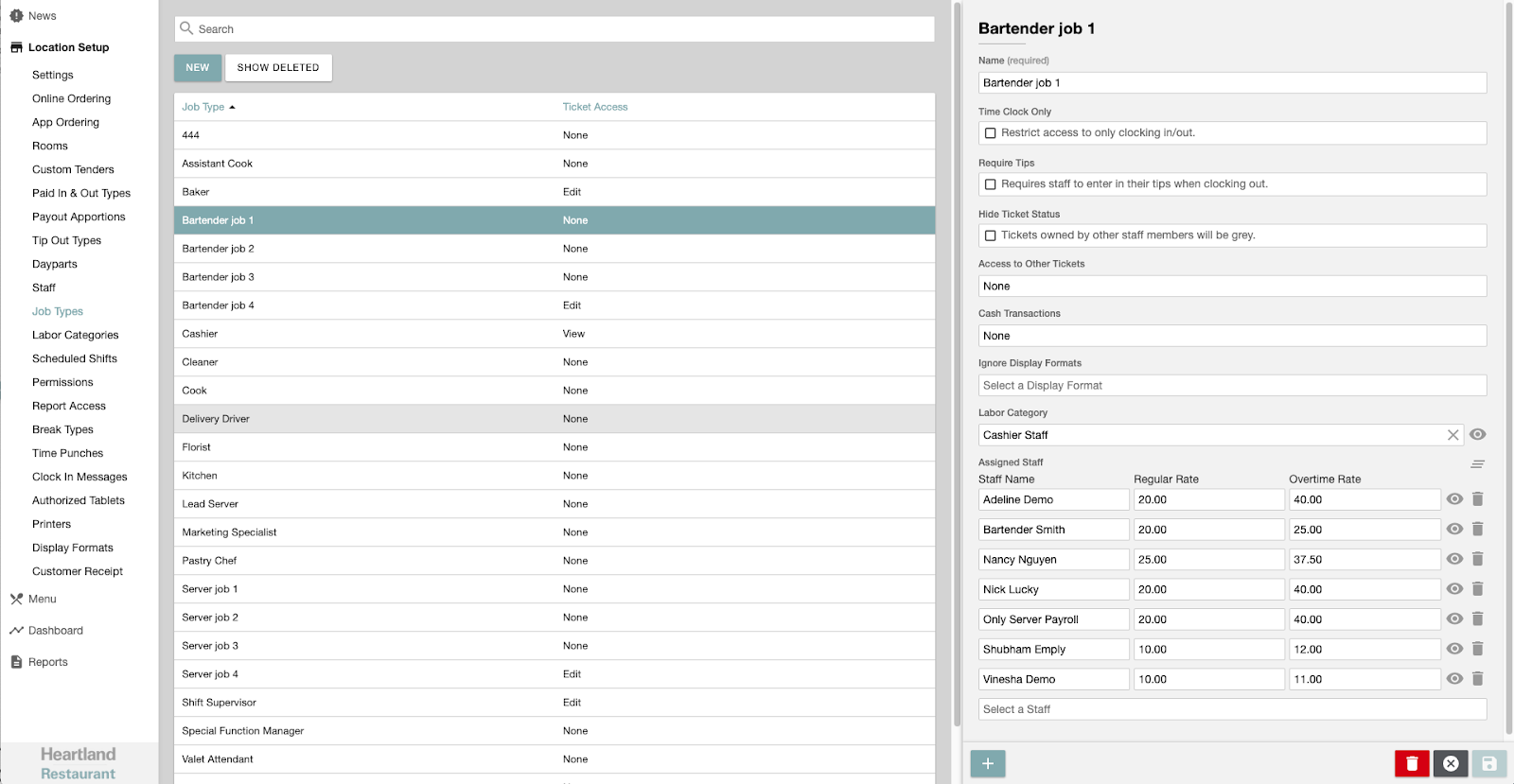
Within each of these Labor Categories are specific Job Types. In this example, Cashier Staff include both Cashiers and Bartender Job 1. Perhaps Bartender Job 1 is a special bartender position that can mix drinks and take customer payments.
Updates to Labor Categories and Job Types are synchronized with Heartland Time within 5 minutes.
Configure Jobs to Labor Fields
Once Labor Categories and Job Types have been synchronized to Heartland Time, they must be linked to the Heartland Payroll Labor Fields.
- IMPORTANT NOTE: This is an important step. Failure to complete this step can cause delays in the payroll process.
To configure Job Types in Heartland Time to Heartland Payroll:
- Login to Heartland Time.
- Select Administration > Jobs.
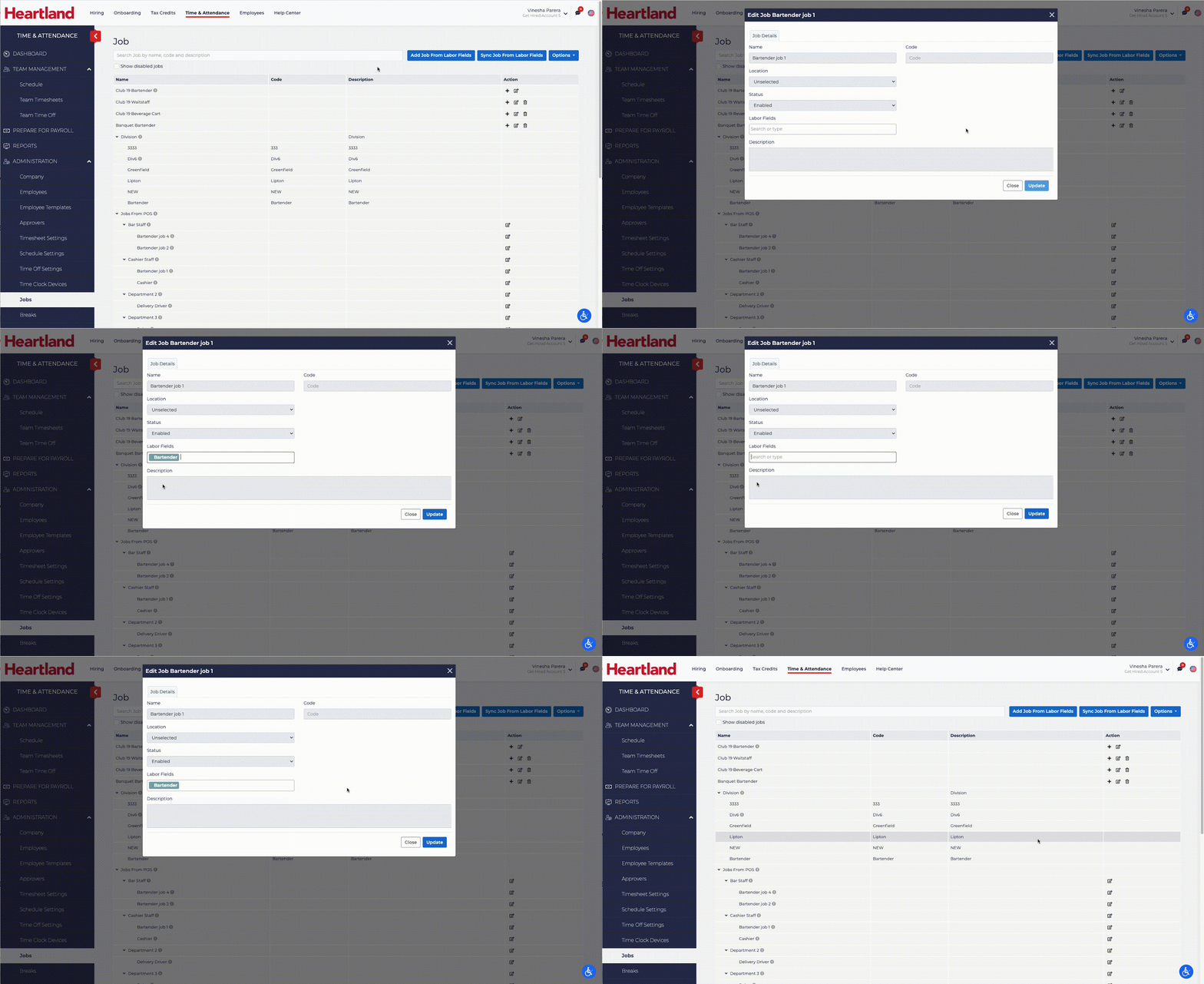
- The Job Types from Heartland Restaurant listed will be organized under Jobs from POS.
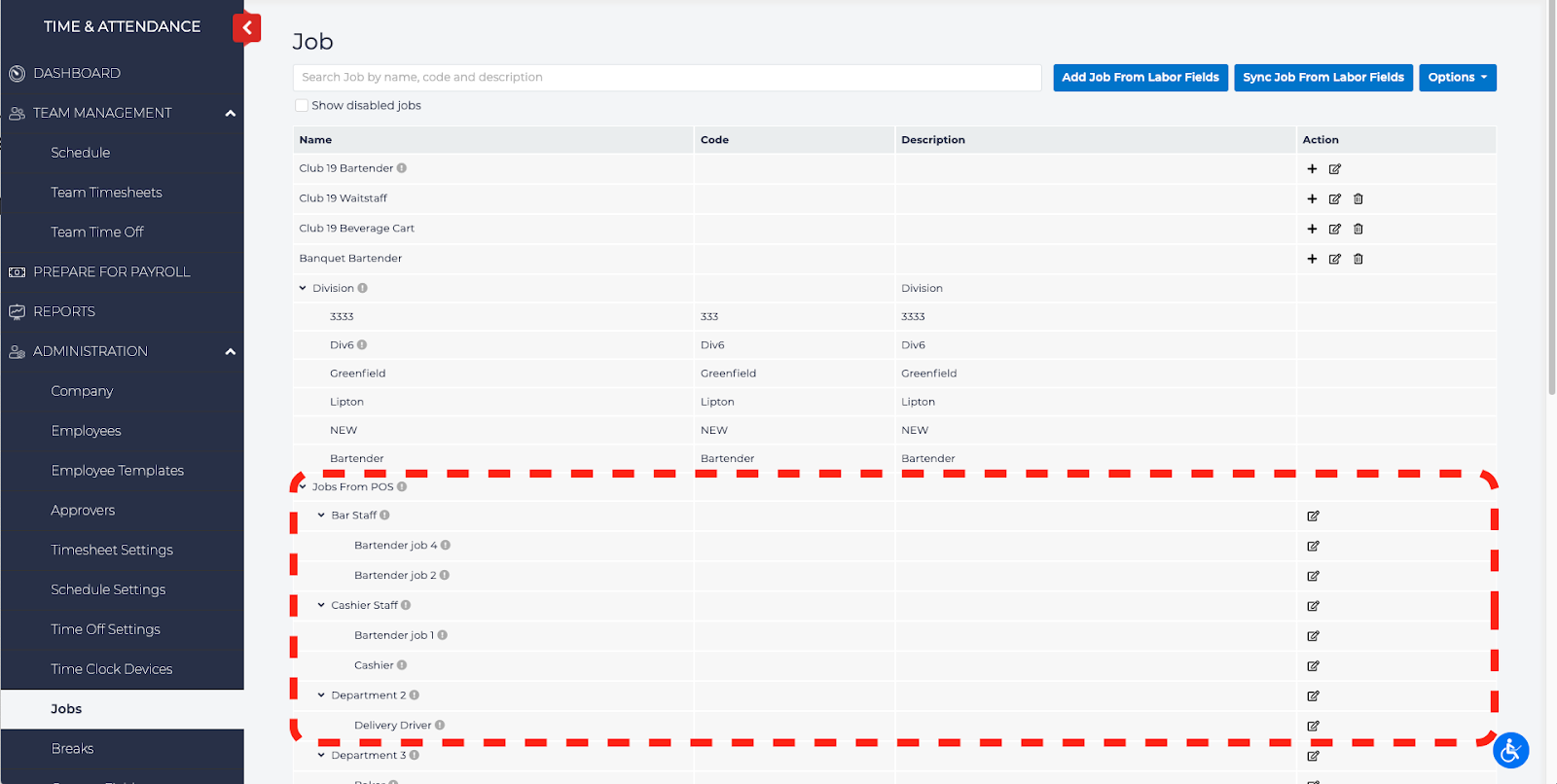
- Select the Job Type to update by selecting the Edit icon
 .
. - Select which Labor Fields the Job applies to from the drop down list.
- When finished, click Update.