Shifts can be created from either Heartland Restaurant or Heartland Time. Wherever they are created, they are synced between the two systems at regular intervals, usually within 5 minutes of being created or updated.
With Heartland Time, you can create schedules that can be applied to multiple employees with repeating shifts, specific break types, and other features. For complete details on schedule and shift management, see How to Create a Schedule.
When a shift is created in Heartland Restaurant, it will be synced within 5 minutes of being saved. Shifts can be synced manually between Heartland Restaurant and Heartland Time to speed up the process.
Create a Shift in Heartland Time
Schedules in Heartland Time can be varied, including repeating schedules, break types, and other features. We encourage users to use Heartland Time as their primary method of shift management method. This allows for the full use of features, such as approving shift drops and swaps, setting up repeating shifts, approving time off requests, etc.
These shifts will be synced with Heartland Restaurant within five minutes of being created or edited.
- Login to Heartland Time.
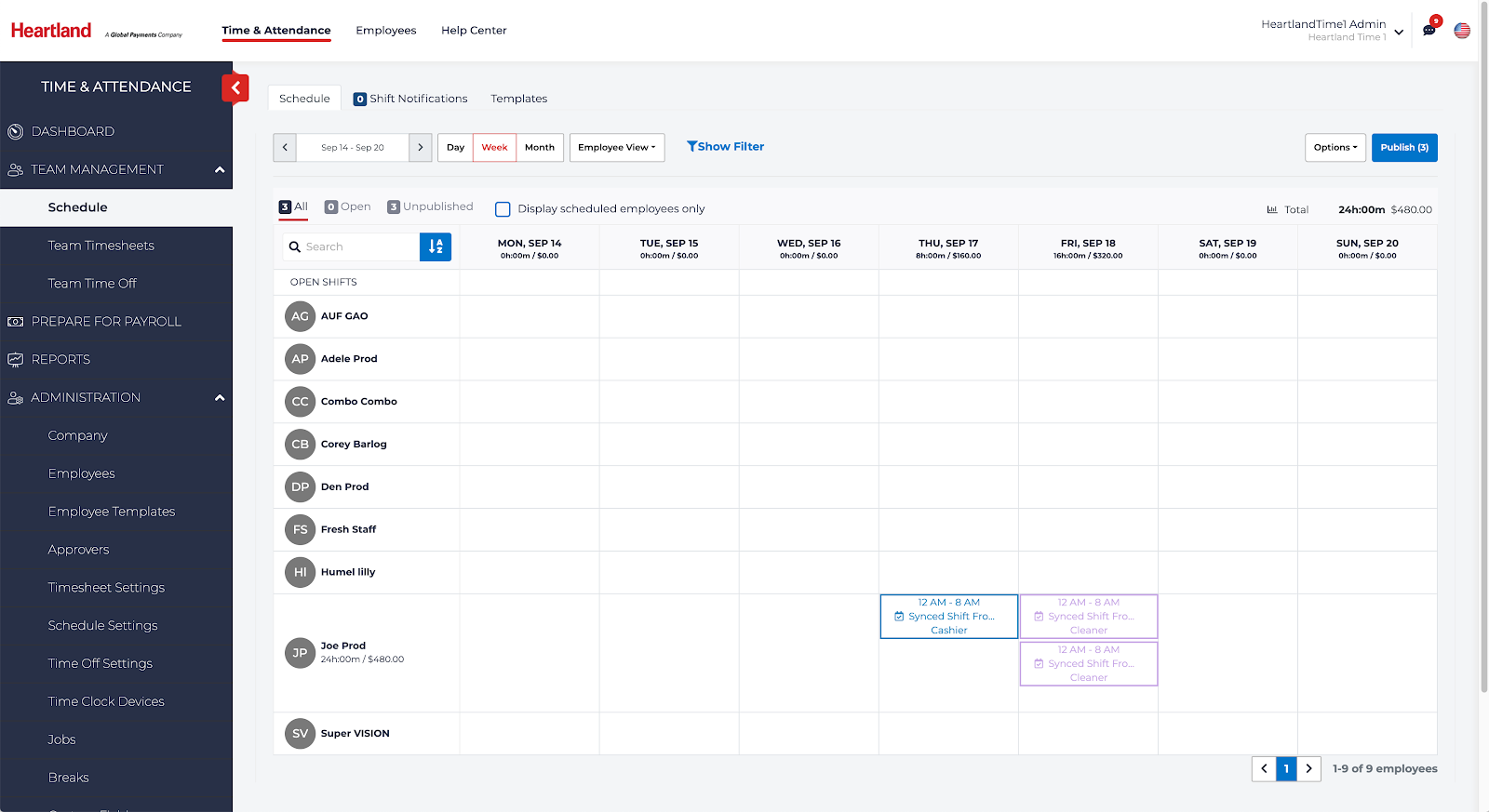
- Select Team Management > Schedule.
- To create a shift for a specific employee, select the calendar date on the same row as the Employee.
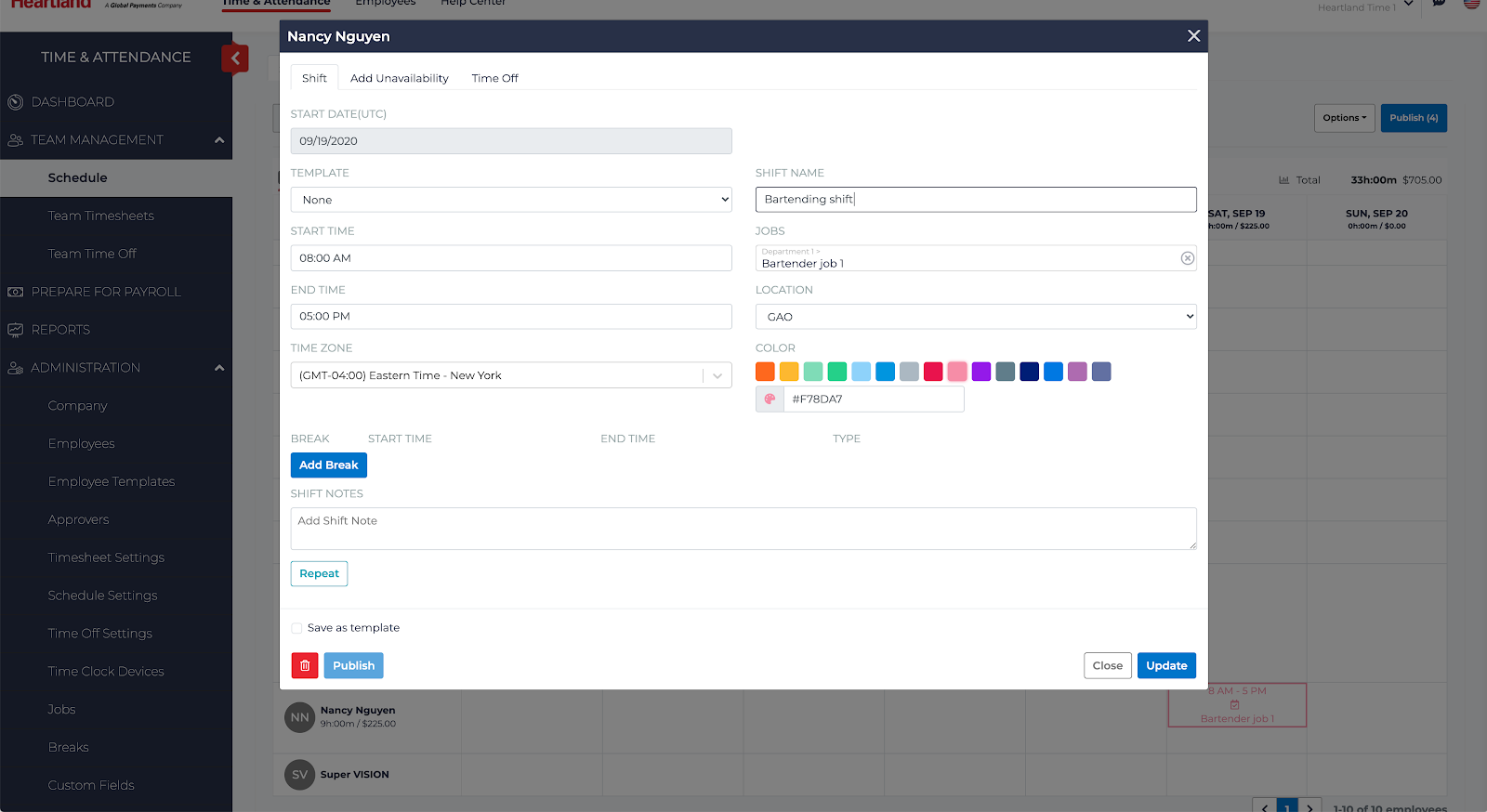
- Complete the shift details and click Save or Update to save the shift details.
Create a Shift in Heartland Restaurant
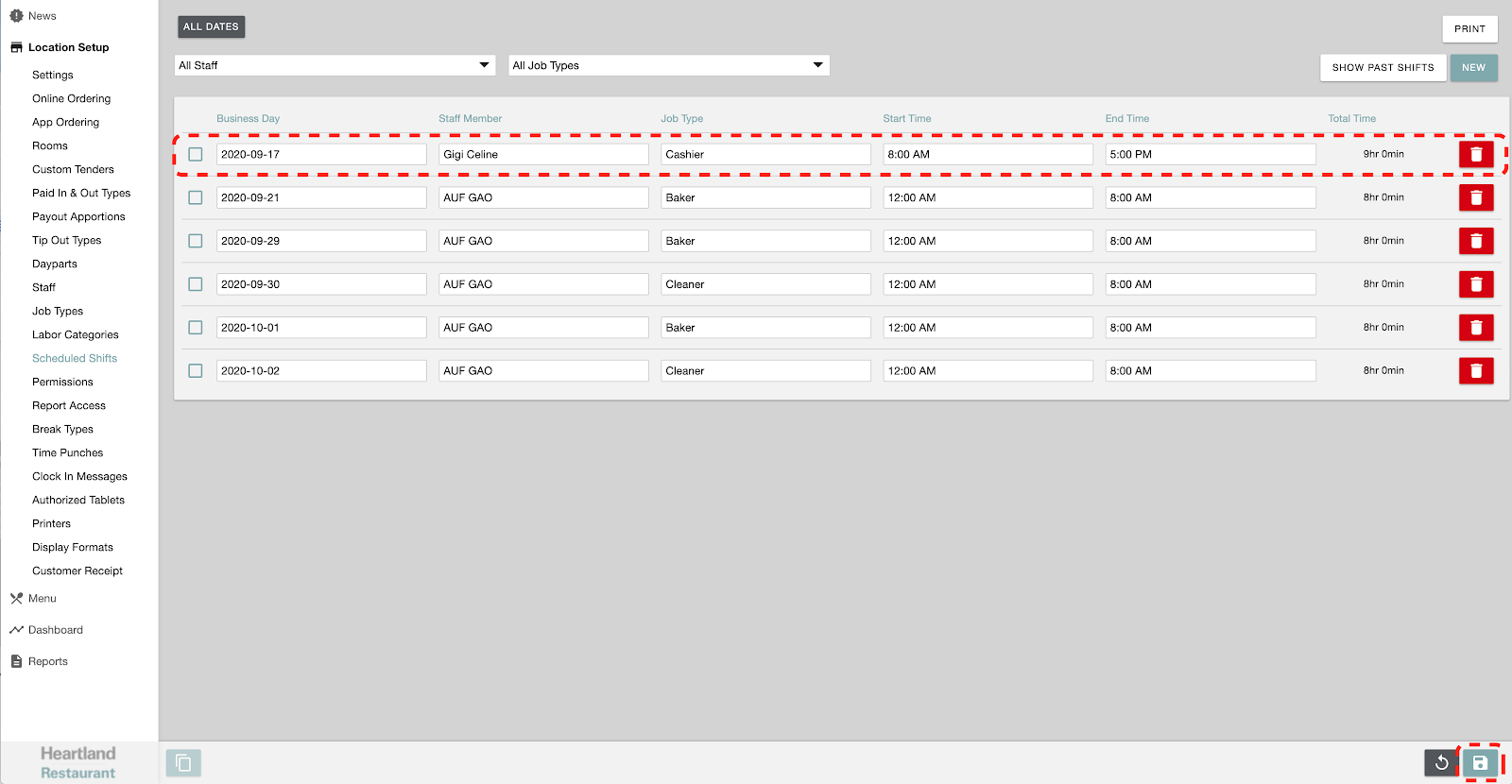
Shifts can be created in Heartland Restaurant. These apply to only one staff member at a time, and can not be set to repeat. We encourage you to use Heartland Time for shift management, but if you need to create a simple shift in Heartland Restaurant, follow these steps:
- Login to Heartland Restaurant.
- Select your Location.
- Click on Location Setup > Scheduled Shifts.
- Click New.
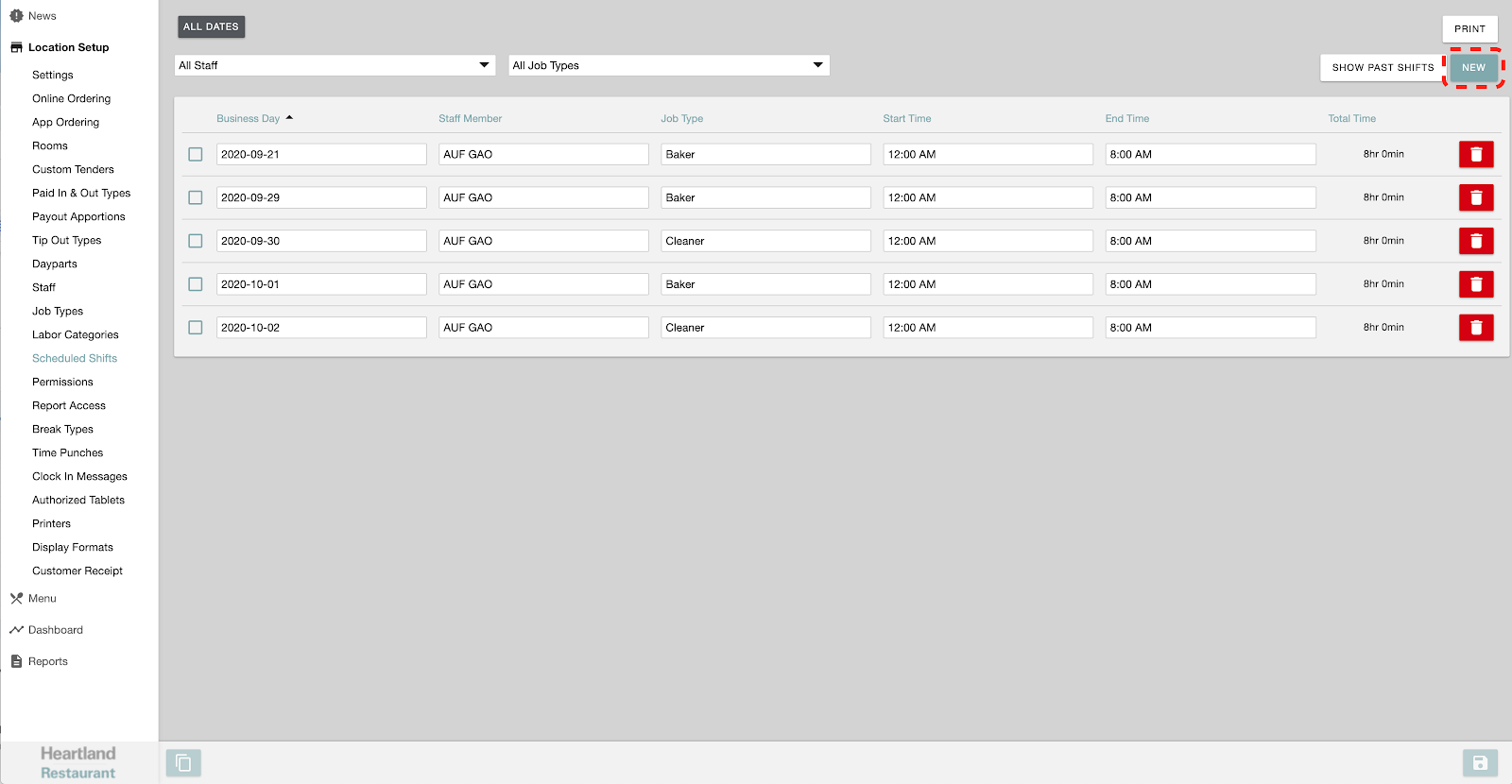
- Enter the shift details, including the date, staff, start and end time. When finished, click Save. Note that unsaved shifts are not synced between Heartland Restaurant and Heartland Time.
Manually Sync Schedule
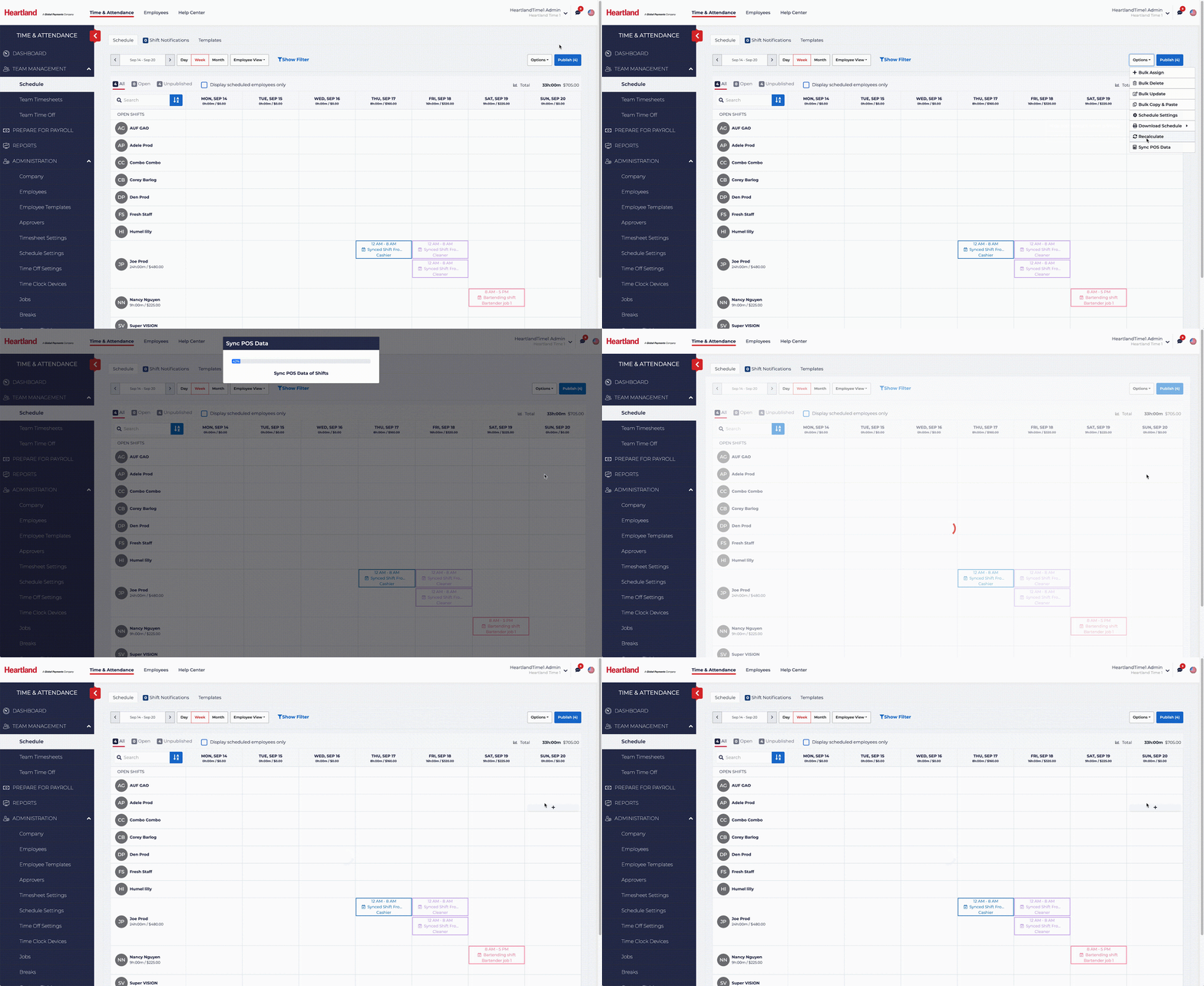
Shifts are synchronized between Heartland Restaurant and Heartland Time automatically, typically within five minutes. To manually sync schedules between Heartland Restaurant and Heartland Time:
- Login to Heartland Time.
- Select Team Management > Schedule.
- Click Options, then select Sync POS Data.
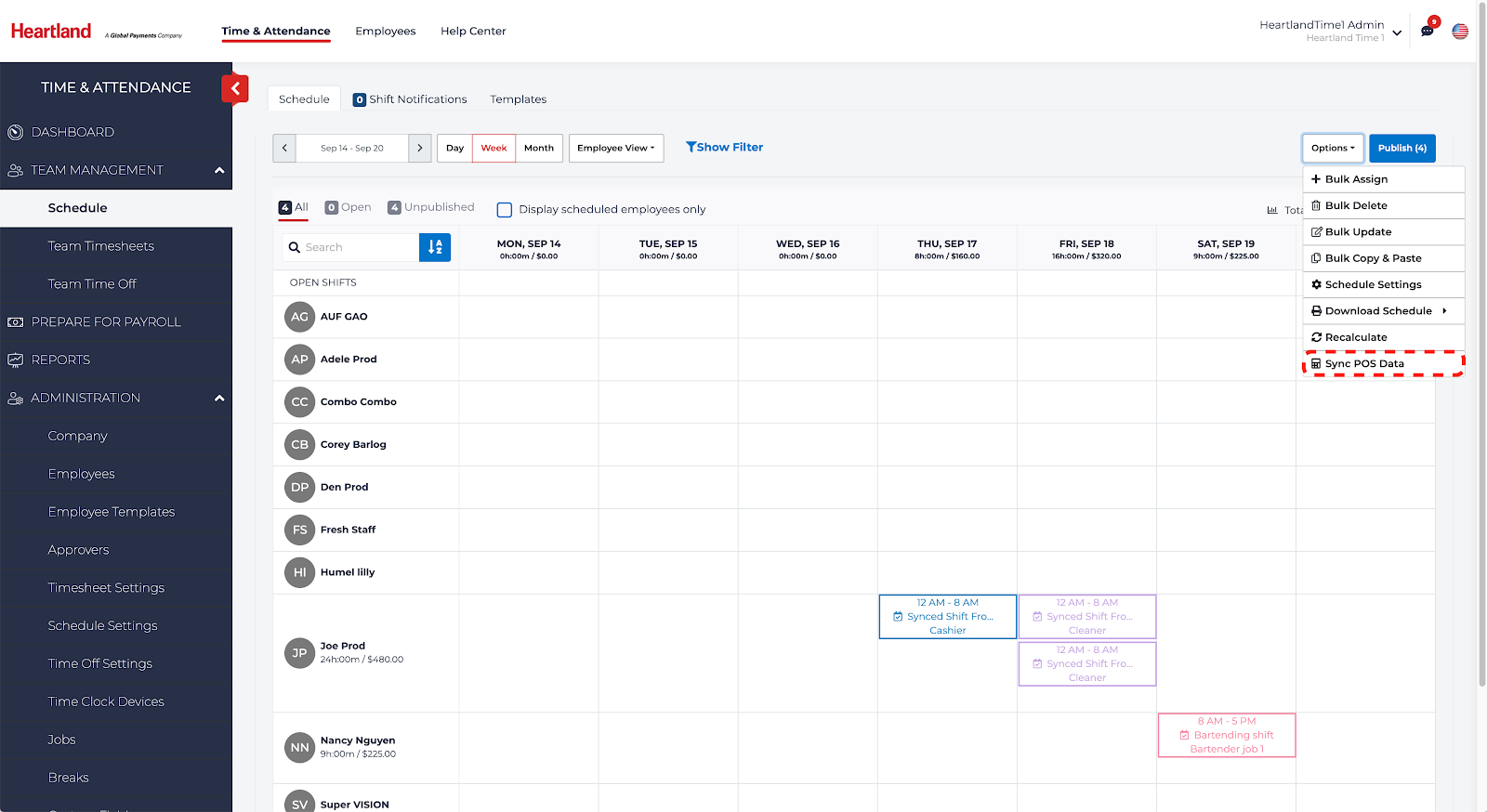
- Wait until the Sync process is complete. When finished,