Once Heartland Time has been added to your account, setting up employees requires steps in both Heartland Restaurant and Heartland Time to complete the setup process.
To add new staff from Heartland Restaurant, the following steps must be completed:
- Add or update staff in Heartland Restaurant
- Sync with Heartland Time (optional)
- Complete the employee setup in Heartland Time
How to Configure Heartland Restaurant Staff
Staff members set up in both Heartland Restaurant and Heartland Time are linked with their unique Employer ID.
To create or update a new staff member Heartland Restaurant:
- If the staff member already exists in Heartland Time, note the Employee ID from Heartland Time. In Heartland Time this is listed under Administration > Employee > Employee Number.
- Login to your Heartland Restaurant account.
- Select the Location from the top menu bar.
- Click Location Setup, then Staff.
- To create a new staff member:
- Click New from the upper right hand corner.
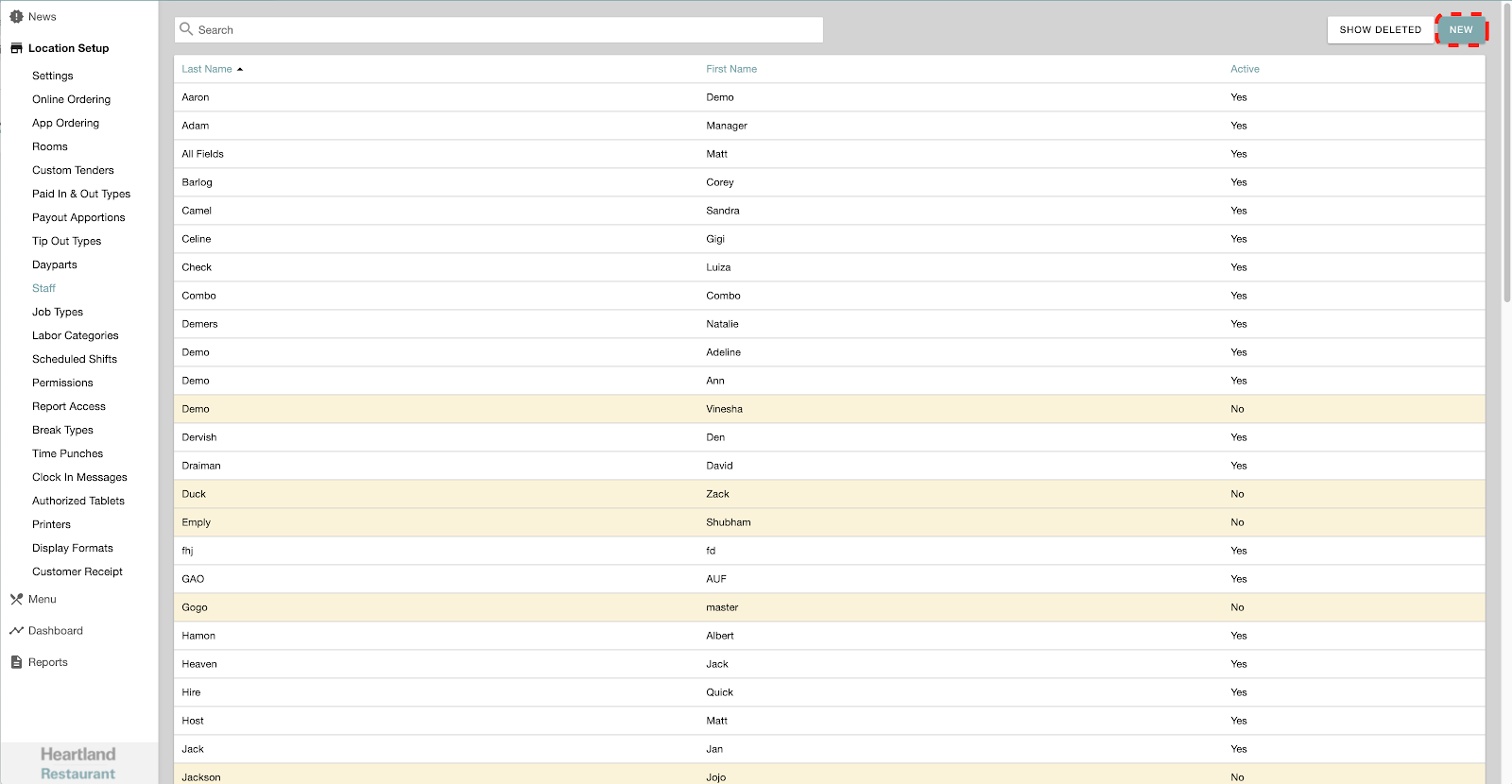
- Click New from the upper right hand corner.
- To update a staff member:
- Click on the staff member.
- Complete the Staff Member questionnaire. The following fields are required as part of the integration with Heartland Time.
- First Name
- Last Name
- Employee ID: Set this to the same Employee ID as in Heartland Time. If this is a new employee, assign them a unique Employee ID. This identifier must be unique across all of your Heartland Time employees.
- Fill in any other details as required for this staff member. When finished, click the Save icon
 in the lower right hand corner.
How to Manually Sync Heartland Restaurant Employees with with Heartland Time
Heartland Restaurant and Heartland Time automatically sync employees within 5 minutes of being created or edited. You can manually sync these two systems if you don’t want to wait for the automatic sync to complete.
To manually sync your employees after updating them from Heartland Restaurant:
- Login to Heartland Time.
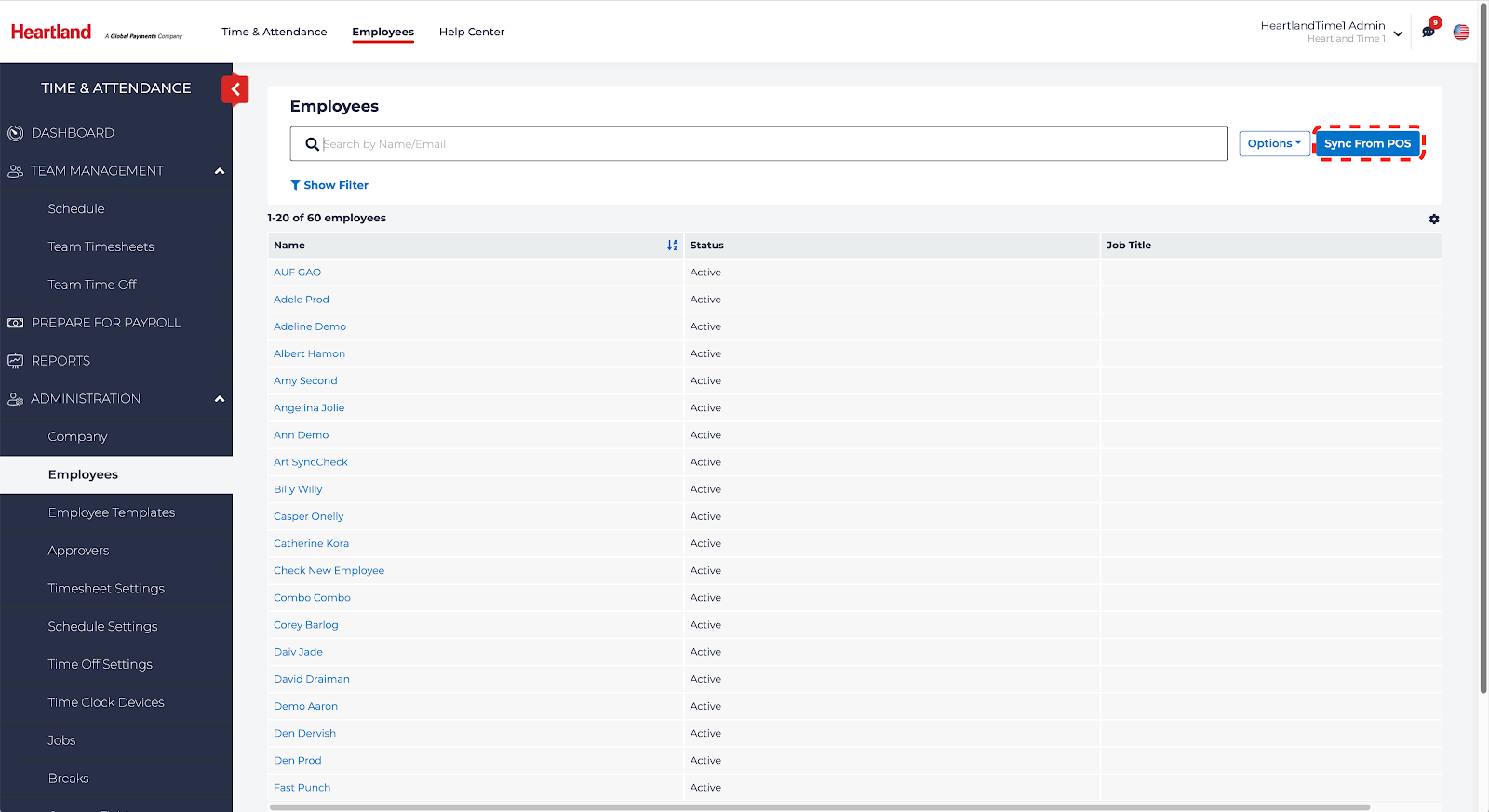
- Select Administration > Employees.
- Click Sync from POS.
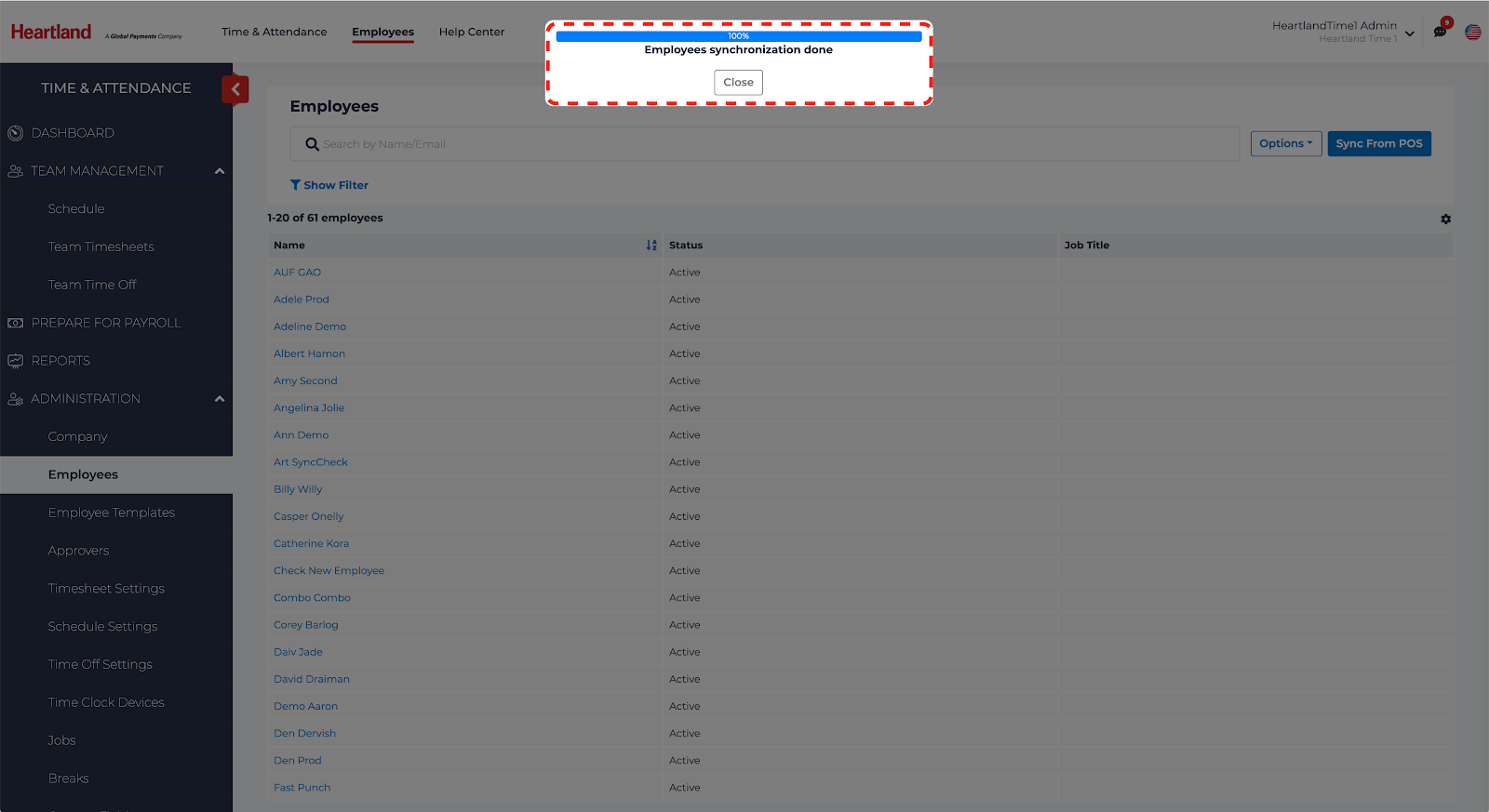
- Click Close when the synchronization is complete.
How to Complete an Employee Setup in Heartland Time
Before the Employee Setup between Heartland Restaurant and Heartland Time is complete, some mandatory information must be added to the new employee in Heartland Time.
To complete the Employee Setup in Heartland Time from an Employee added in Heartland Restaurant:
- Login to your Heartland Time account.
- Select Administration > Employees.
- Select the Employee to complete. To filter employees by name, enter the first characters of their name or email address in the Filter bar.
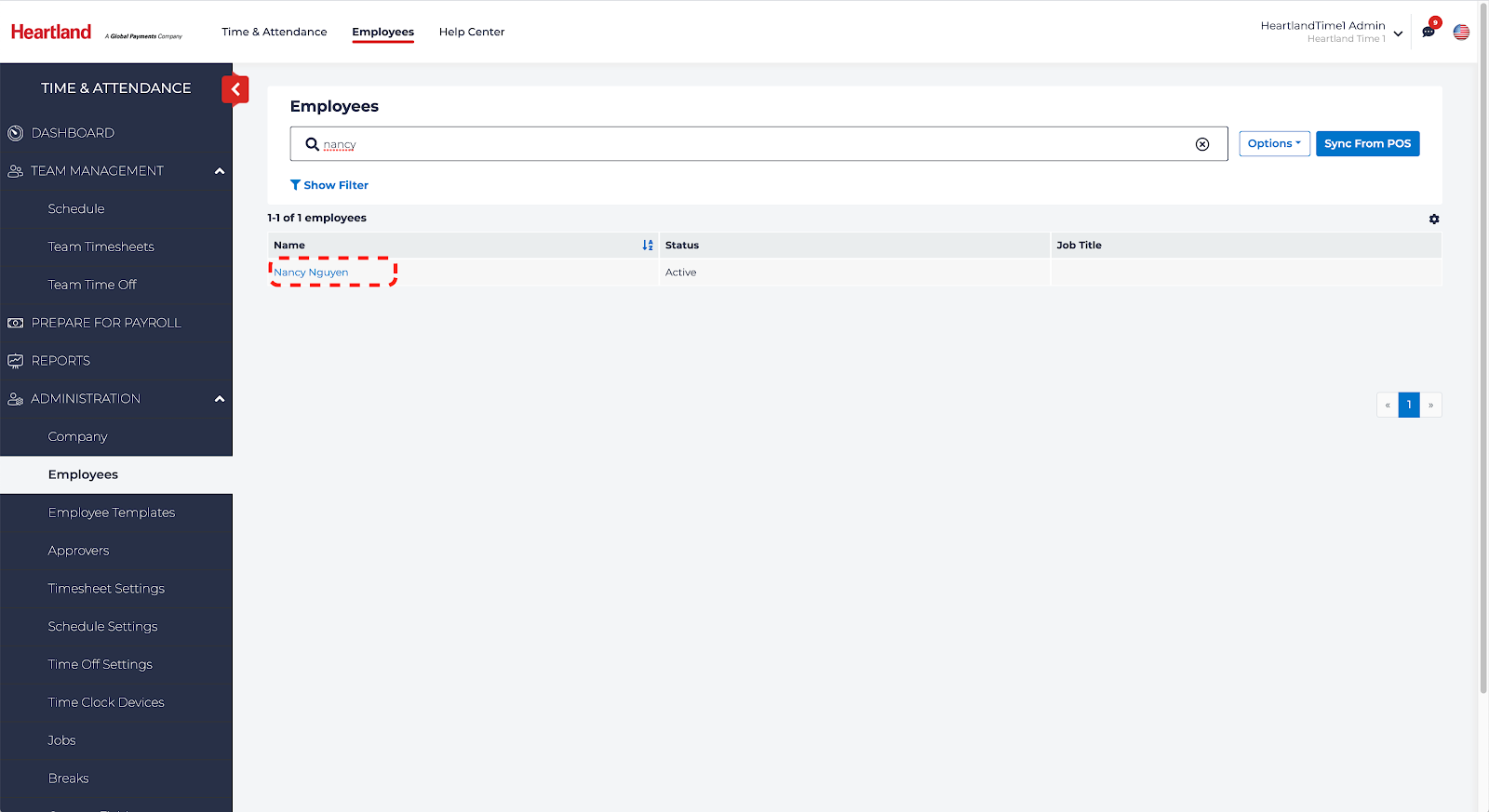
- The following pages and fields must be completed before the Employee setup is completed. On each page, click Continue after updating Employee information or else it will not be saved. There are two major sections for each Employee that needs to be completed: the Employee’s Profile, and the Employee’s Time & Attendance.
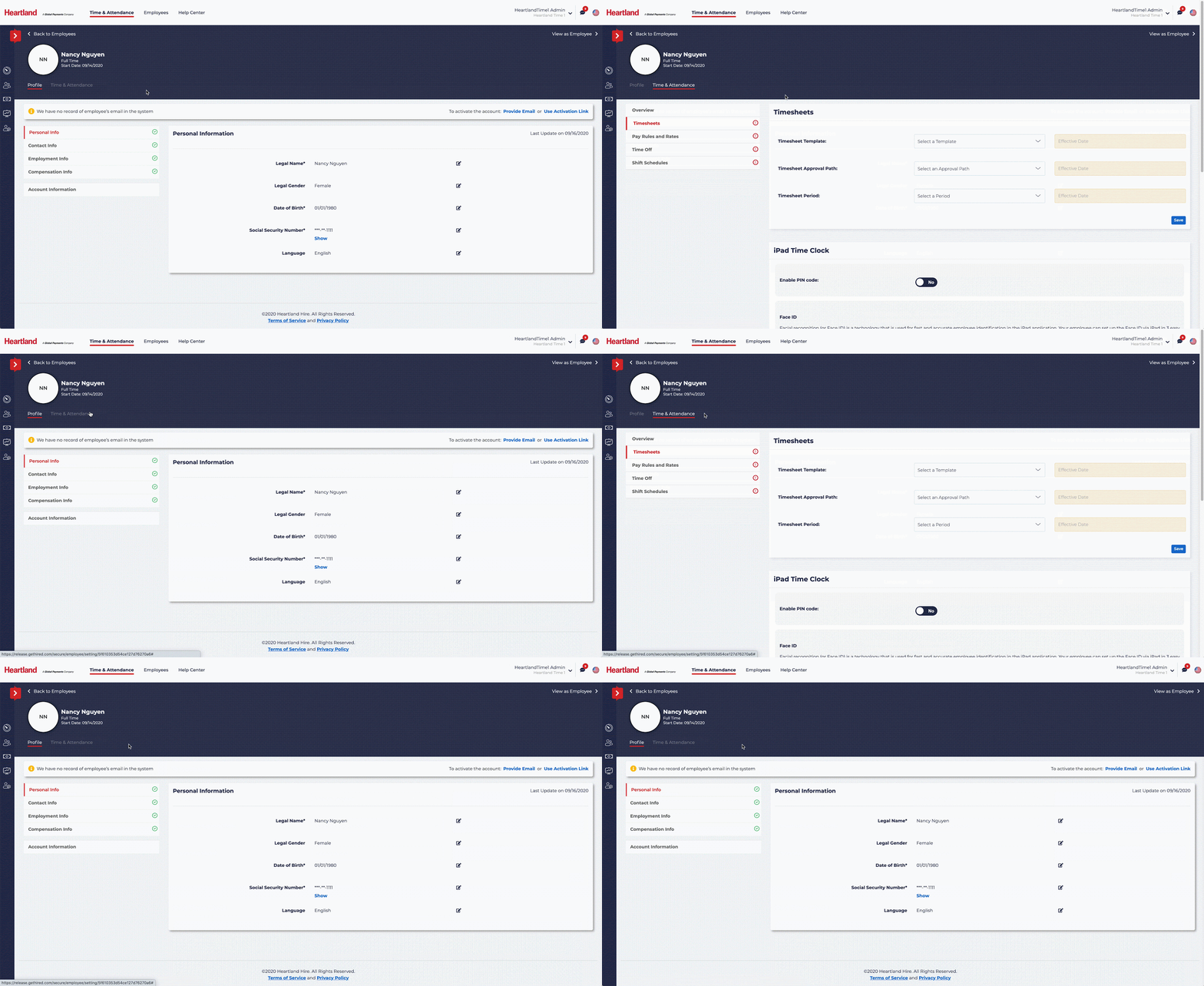
- Update the following under the Employee Profile Page:
- Personal Info:
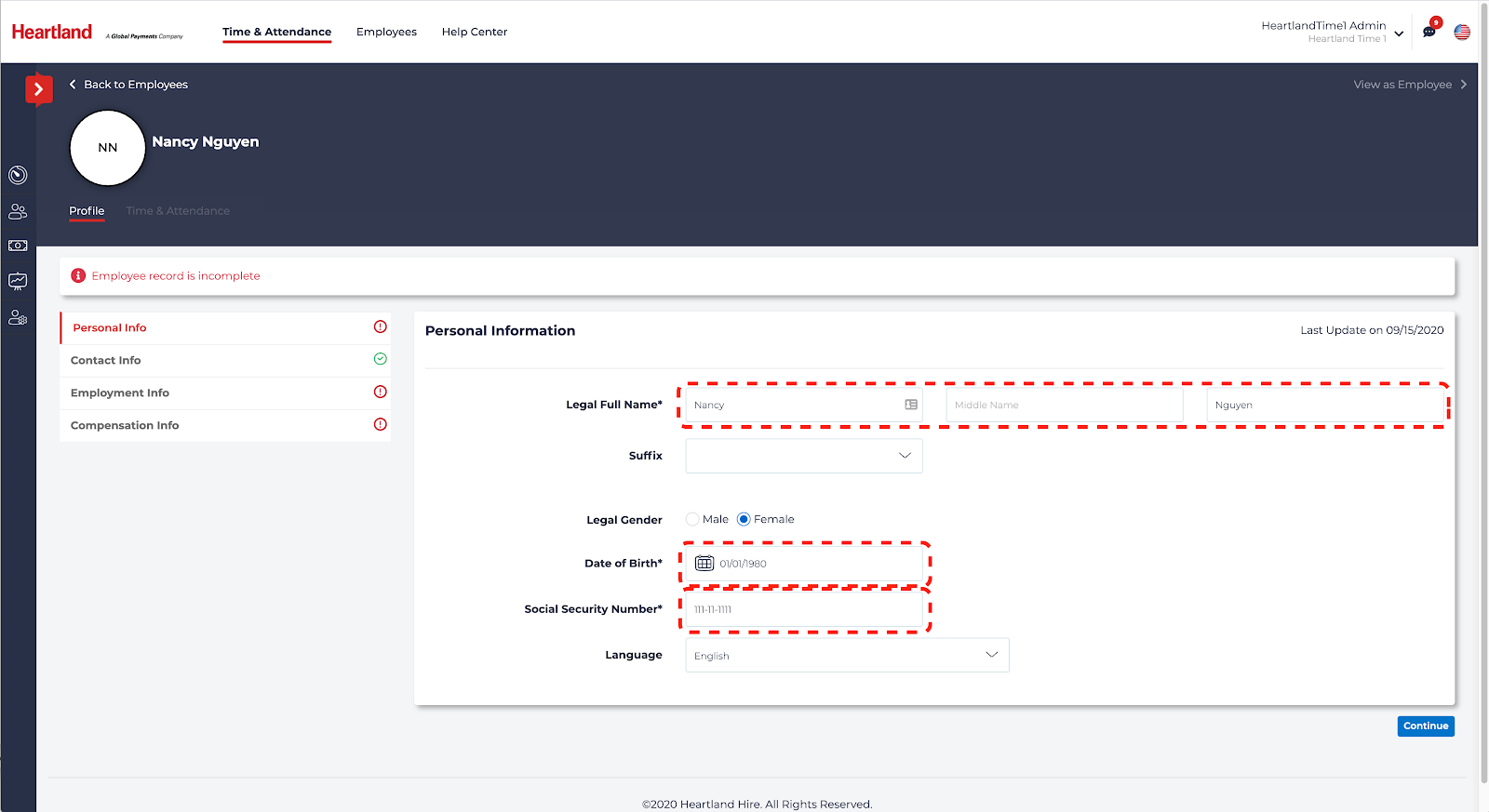
- Legal Full Name (given name and surname)
- Date of Birth
- Social Security Number
- Employment Info
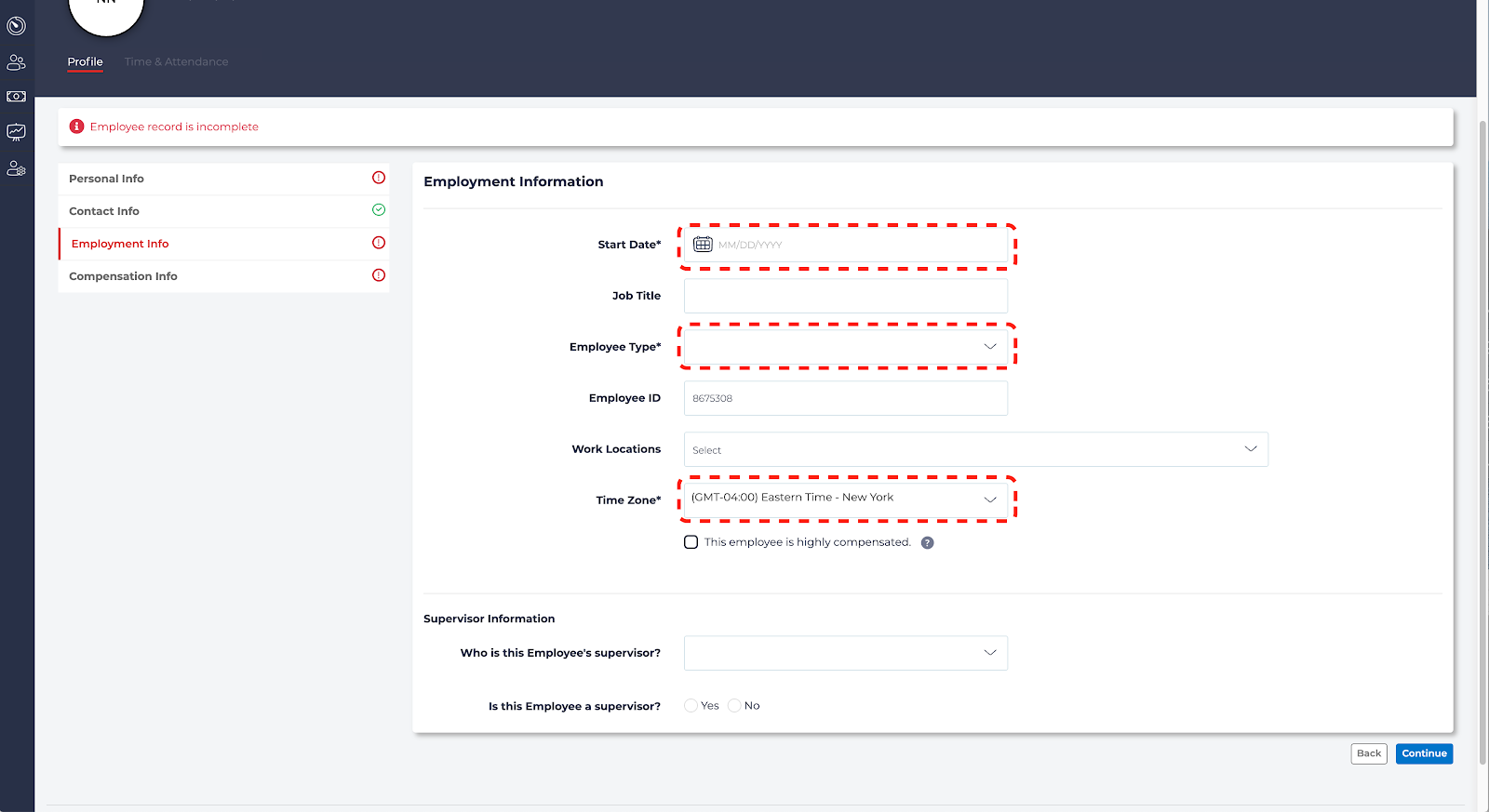
- Start Date
- Employee Type
- Time Zone
- Compensation Info
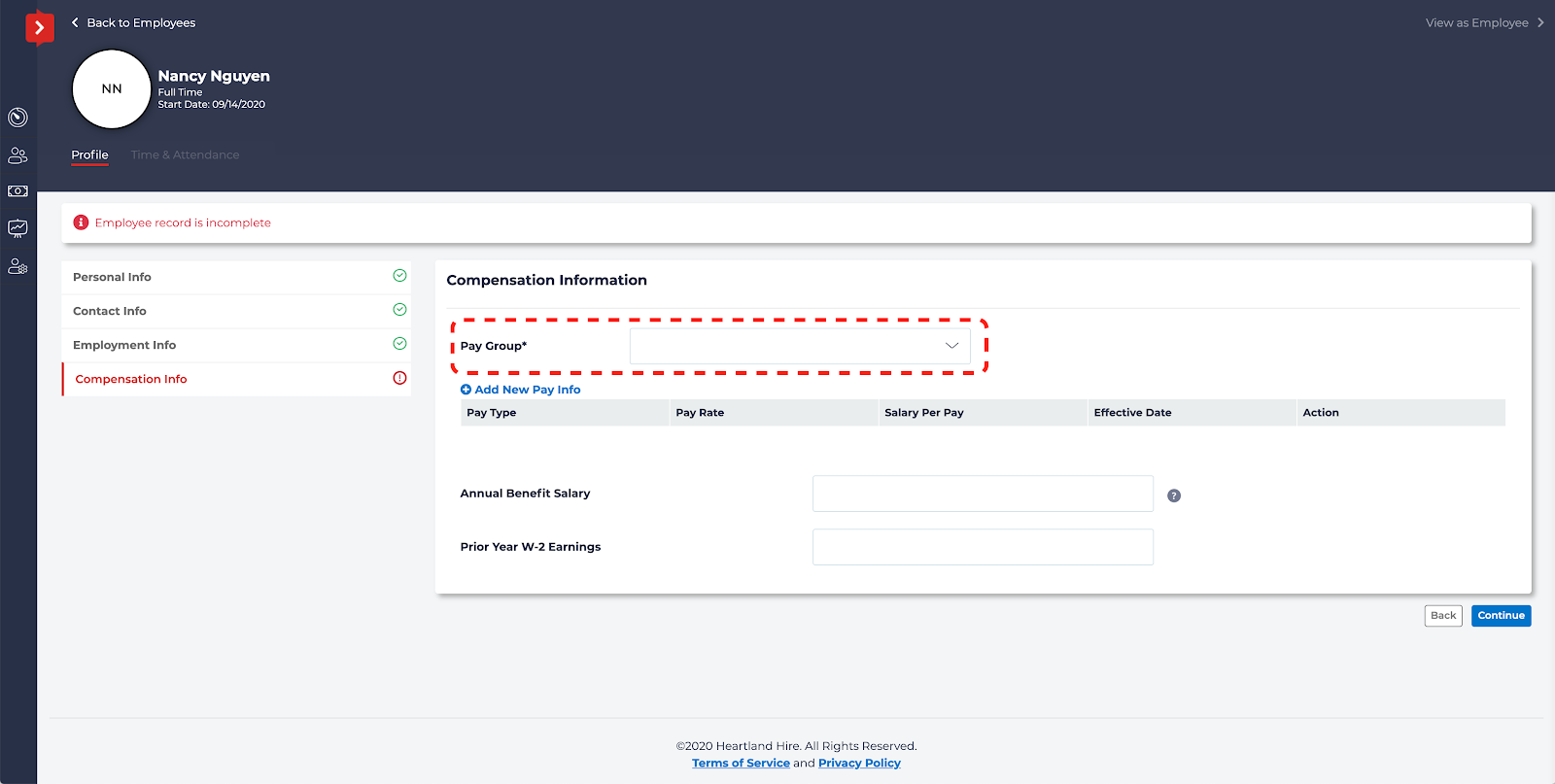
- Pay Group: This represents the pay frequency and pay period schedule. For more information, see Review your Pay Groups.
- Personal Info:
- On the Time & Attendance section, fill out the following and click Save for each section before moving to the next:
- Timesheets (including the Effective Date)
- Timesheet Template
- Timesheet Approval Path
- Timesheet Period
- Pay Rules and Rates (including the Effective Date)
- Work Week Starts on
- Overtime Rule
- Meal Break
- Rest Break
- Holiday Rule
- Time Off (including the Effective Date)
- Time Off Approval Path
- Holiday Calendar
- Time Off Balance Settings. The mandatory fields will differ depending on whether the Employee’s Schedule Type is set to Shift, Fixed Schedule, or Variable Schedule.
- Shift Schedules (including the Effective Date)
- Schedule Shift Approval Path
- Employee Can View
- Timesheets (including the Effective Date)