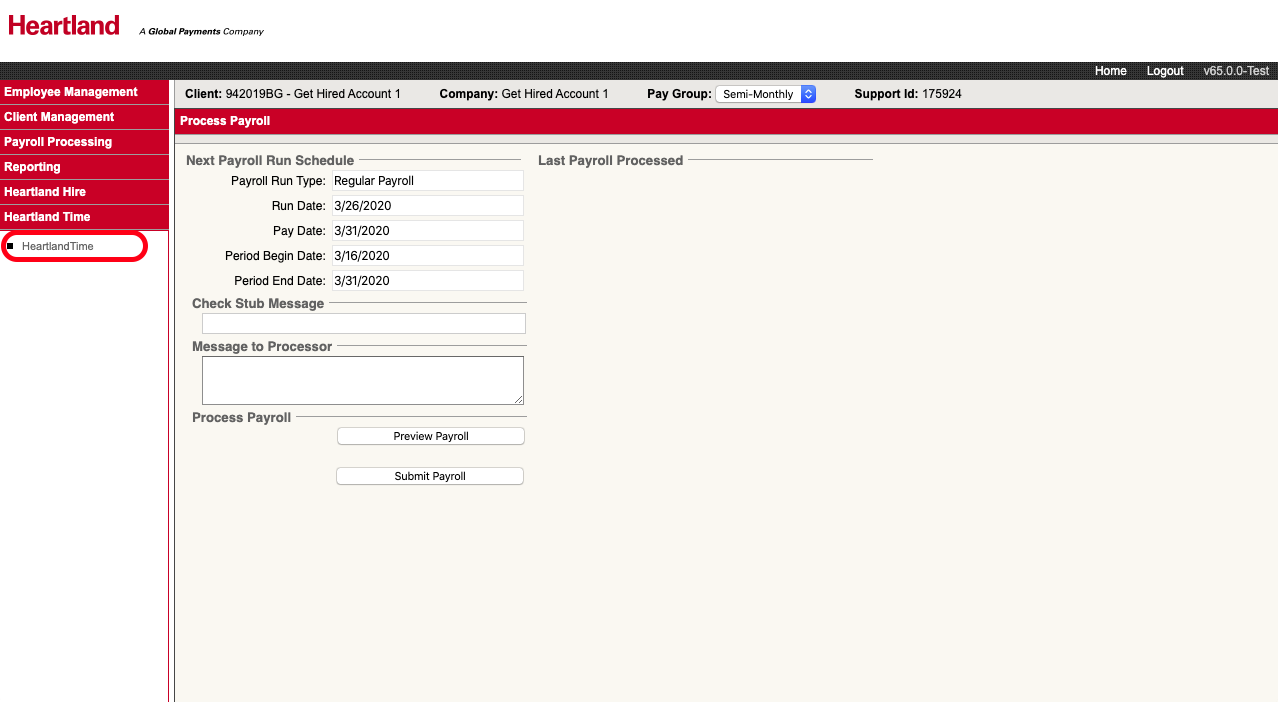
The first time you use the Heartland Time system, you’ll login from the Heartland Payroll page. To enter the Heartland Time system:
- Click Heartland Time from the left navigation panel.
- Click the Heartland Time option.
Initial Synchronization
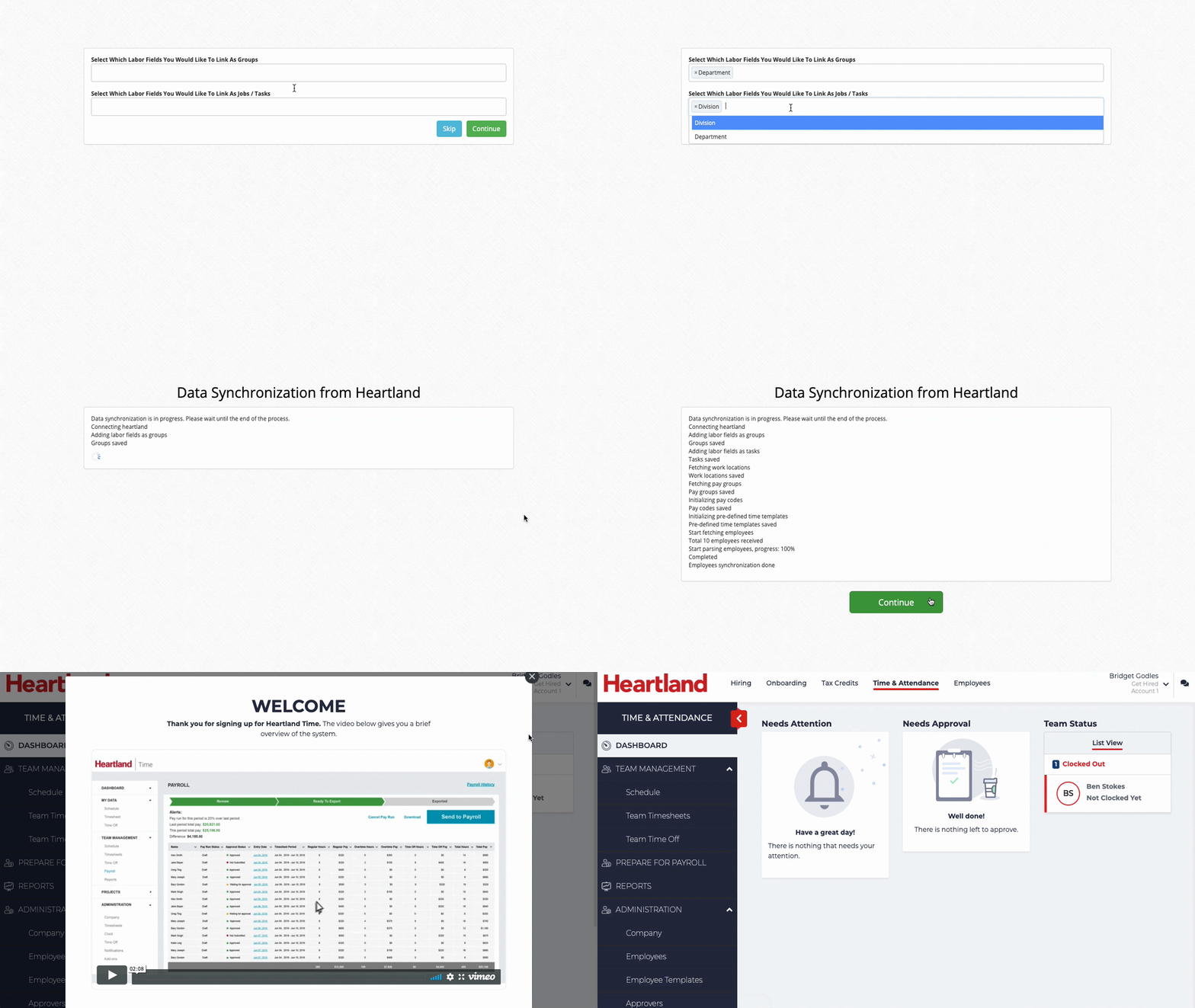
The first time you login to Heartland Time, an initial synchronization will occur. This process copies your employees, organizational structure, and other settings into Heartland Time. This process usually takes just a few minutes.
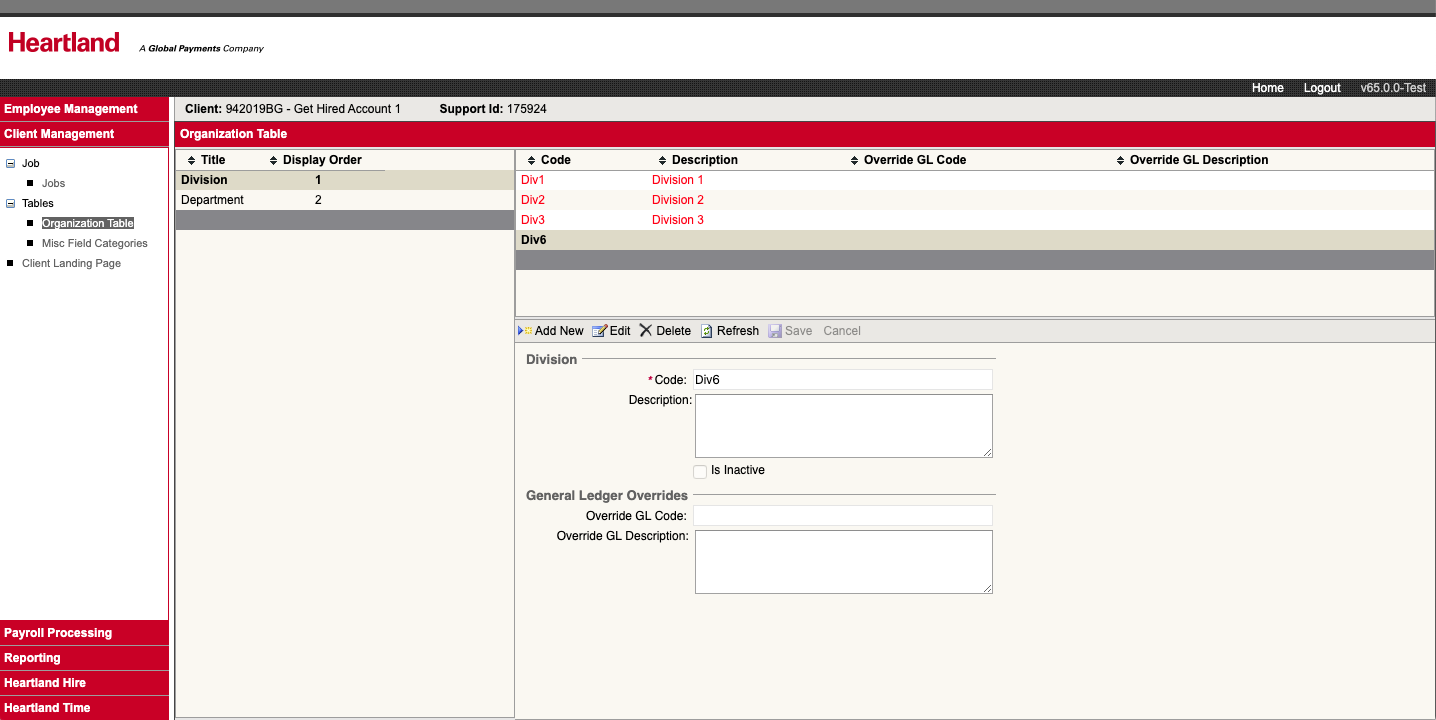
During the process, Heartland Payroll will sync the Labor Fields with Heartland Time. The Labor Fields are located in Client Management > Tables > Organizational Table.
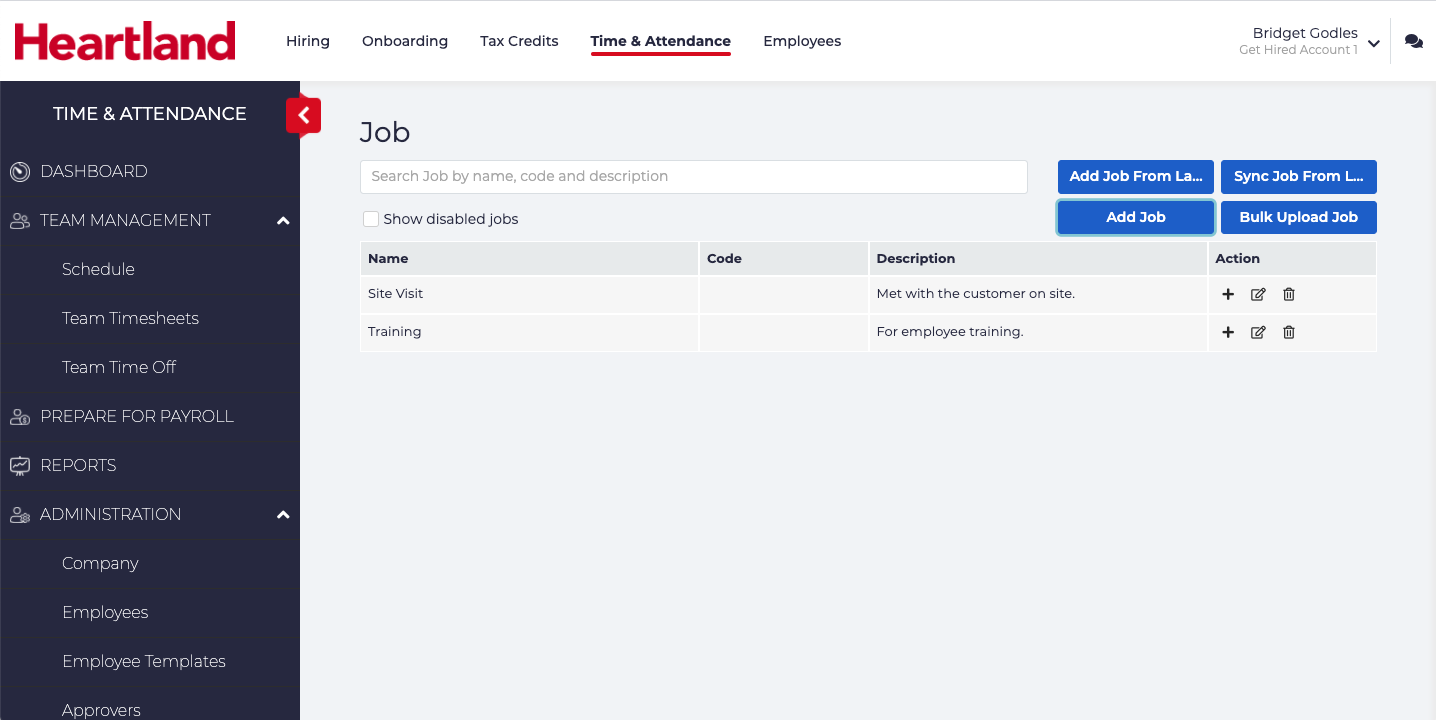
The initial synchronization step may request you assign the Organization Table Labor Fields to either an Organizational Structure Groups, or as Jobs. Groups are how your business is organized, such as geographical divisions, departments, etc. Jobs are what people are working on, such as specific project codes.
|
Heartland Payroll Labor Fields |
|
|
Heartland Time Organizational Structure Groups |
|
|
Heartland Time Jobs |
|

Complete details can be found in the Heartland Time support documentation, but the important thing to note in the initial synchronization is this:
- If prompted on which Labor Fields to link as Groups, select the Labor Fields that are tied to your company’s organizational structure.
- If prompted on which Labor Fields to link as Jobs, select the Labor Fields that are tied to job codes.
- If unsure, select Skip.
- When the synchronization is complete, click Continue.
This information can be synced manually at a later date if necessary. For more information, please see the Heartland Time support documentation.
When new employees are added, they are synced to the Heartland Time system each night EST. If you add new employees and want to update the system manually, please see our support documentation.