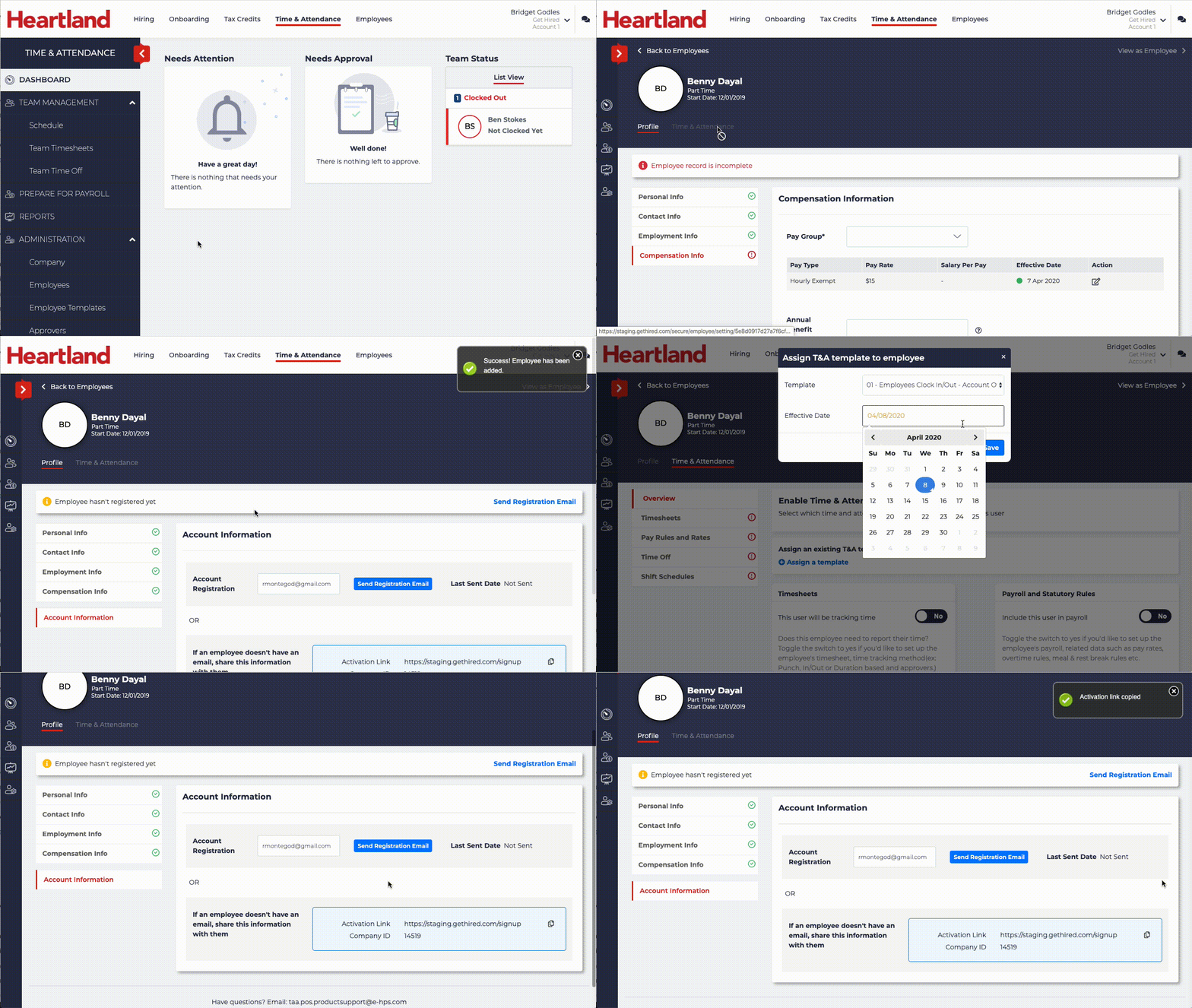
With the most critical information filled in, you can finish setting up your Employees. Their information will be imported from Heartland Payroll as part of the initialization process.
Employee settings can be customized as needed, such as their address, Pay Group, etc. For more details, please see the Heartland Time support documentation.
In this step, you will perform the following actions for the Employees:
- Apply the Employee Template.
- Set their Pay Code.
- Provide a registration link so they can access their Heartland Time user account.
To finishing setting up an Employee in Heartland Time:
- Click Administration > Employees.
- Select the Employee to update.
- Click Compensation Info.
- Set the Pay Group to the one appropriate to the Employee.
- Select the Start Date when these settings will take effect.
- Click Continue.
- Select Time & Attendance from the menu below the employee’s name.
- Click Assign a template.
- From the Template drop down, select the template to be used.
- Set the Effective Date.
- Click Save when complete.
- Select Profile from the menu under the Employee’s name.
- Select Account Information.
- To complete the Employee setup:
- If the employee has an email address, enter their email address in Account Registration and click Send Registration Email.
- For any employees that do not have an email address, they can use the Activation Link listed on the page. Select the Copy icon to copy this information so it can be distributed to your employees. This will allow them to login through the provided web page link. Be sure to include the Company ID.
- Repeat these steps for each Employee.